It has been over a year now that I have transferred all of my websites from a shared Hostgator account (Baby Plan shared hosting package) to a managed VPS server from wiredtree.com. Specifically I have purchased their Managed VPS1000 option which offers the following specs:

Main WiredTree VPS1000 Specs:

  • 1024 MB Guaranteed RAM
  • 100 GB Disk Space
  • 3000 GB monthly bandwidth
  • SSD Accelerated disks for caching and acceleration (tremendous improvement in website loading time and response).
  • 4 dedicated IP addresses
  • cPanel / WHM for easy management of server
  • Fully Managed solution (you don’t have to install or manage anything).
  • ServerShield security hardening of your VPS server including security protection tools like Advanced Firewall (CSF) for firewall and brute force protection, Spam Prevention and Antivirus, HTTP intrusion and Denial of Service Protection, Security Audits, continuous software updates etc.
  • 24×7 Service Monitoring so you don’t have to worry if your VPS is down.
  • 24×7 Phone and Help Desk support
  • 100% Node Uptime SLA
  • Many more features

Traffic Handling Performance

When I was using shared hosting from Hostgator, there were several occasions that my websites were throwing an “Error 500 Internal Server Error” message which was caused by excessive traffic to the shared server. Especially whenever I was sending an email broadcast to my subscribers asking them to check out an article I have written on my site, the whole website was inaccessible because of the sudden increase in traffic from the email subscribers. Now, with my wiredtree VPS server I never had such an outage problem. It can handle all of my traffic with no problems.

Website Loading Speed

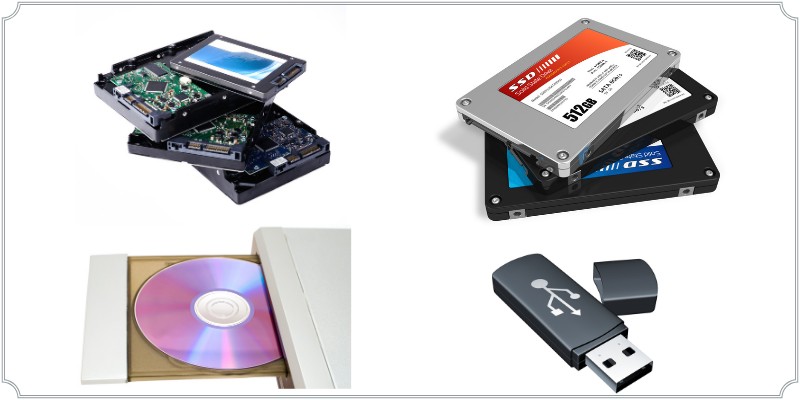
Website loading times have also improved considerably. It seems that the SSD Accelerated disks (SSD = Solid State Drive = much faster than normal disks) make a huge difference in your website speed performance. See this article here from wiretree which explains the benefits of SSD acceleration. As you might know already, Google likes websites which load fast, therefore you will have an SEO benefit from increased website speed performance.

Security

As a security and I.T professional myself, I always take my websites’ security very seriously. I know that a hacker or a malware infiltration in my sites can be devastating. So one of the main factors that I was looking at when evaluating webhosting solutions was the security features offered from the VPS provider. WiredTree ticked all the right boxes regarding security.

A hacker can get into your website either via the webapplication (e.g via wordpress for example) or via the webserver. The security tools and features utilized by Wiredtree will make your VPS webserver as bulletproof as possible.

ServerShield is developed by Wiredtree and is a unique and comprehensive software security and optimization suite that is provided free of charge to all customers. When Wiredtree installs your server for the first time, the server is hardened and several security protection tools are installed, including advanced firewall, spam protection, antivirus protection, Denial of Service protection etc. The last 1 year that I have been with Wiredtree, they have already updated my VPS operating system and other software (kernel, cpanel etc) several times in order to close security holes that were identified in the software. This proactive approach to security makes me sleep at night without worrying that my VPS will be knocked out from some malicious hackers. See more Security Features of Wiredtree here.

My overall Experience with WiredTree

In a few words, I’m EXTREMELY SATISFIED!! Their support team is like never sleeping!!! Whenever I open a support ticket with them, they usually answer back and resolve my issue within 1 hour!! Moreover, I enjoy faster websites with SEO benefits, reliable server, and most importantly a secure environment to host all of my sites.

If you are thinking to move your websites from another hosting provider to WiredTree, You can have a look how I did it here.

Comparison of Cisco ASA5500 Vs ASA5500-X

Although Cisco created a new series of ASA appliances (5500-X series), there are hundreds of thousands of older Cisco ASA 5500 models installed and working in networks all over the world.

If you are one of those professionals who are considering to upgrade your older ASA5500 appliances with the new “X” models, I have prepared a comparison article for you with the most important similarities and differences between the two ASA generations.

First, let’s see what Cisco recommends as replacement models for the older ASA5500:

Older ASA5500 Models

Suggested Replacement 5500-X Model

ASA 5505

ASA 5505 (no new model)

ASA 5510

ASA 5512-X or ASA 5515-X

ASA 5520

ASA 5525-X

ASA 5540

ASA 5545-X

ASA 5550

ASA 5555-X

ASA 5580

ASA 5585-X


Next let’s discuss the similarities between the two ASA generations.

Similarities

The major similarity between ASA5500 and ASA5500-X generation is on core firewall functionality and configuration. That is, the major firewall features (NAT, Access Control Lists, VPN configuration, routing, failover configuration, traffic inspection, modular policies, file system management, VLAN and subinterfaces, authentication etc) are configured exactly the same on both ASA5500 and ASA5500-X models. In fact, the new software version 9.X runs on both ASA series.

So, if you have an existing ASA5500 model which works as a regular firewall and you don’t need any new fancy features (called “Next Generation Firewall” features) then you can stay with your current model for now. You should consider though that Cisco has announced the End-of-Sale for the 5500 models which is September 16, 2013. The last date of support for the 5500 generation is September 30, 2018.

Differences

Of course with every new generation of appliances, almost always the new models are improved in terms of both hardware and software capabilities. Let’s see the major differences in bullet form.

  • The new 5500-X models provide around 4 times more firewall throughput than the older 5500 models. Also, they offer 60% higher VPN throughput.
  • The new 5500-X are running on multicore 64-bit processors compared with single core 32-bit processors on older ASA models.
  • The new 5500-X models support Next-Generation Firewall Services either as cloud-based services (such as Cloud Web Security and Web Security Essentials) or as software based modules which do not need additional hardware (only a license to use the software module). You should note however that the “Next-Generation Firewall Services” cost extra money in addition to the core firewall appliance. You will either need to purchase Cloud Subscription or purchase software licenses (for the IPS software module for example).
  • For Intrusion Prevention functionality (IPS) you don’t need an additional hardware module like the older 5500 generation. You can enable an embedded IPS on any 5500-X model by purchasing a software license.
  • More network interfaces available on the 5500-X models (up to 14 Gigabit Ethernet ports).
  • On ASA5500-X models the management interface port is shared between the Firewall and the embedded IPS module. Also, the management port on ASA5500-X cannot be used as a data port. Remember that on the older 5500 models you could use the management port as a data port as well (as a regular interface). This is not supported on 5500-X models. Management port is only for management of the appliance.


These are the main differences between the two ASA generations. My new ebook which I’m working on right now (“Cisco ASA Firewall Fundamentals-3rd Edition”) will be applicable for both ASA5500 and ASA5500-X (regarding the core firewall functionality of the appliances), and will cover also the newest ASA version 9.X.

I hope you found my article useful. Talk to you soon.

Harris Andrea

The scenario of configuring site-to-site VPN between two Cisco Adaptive Security Appliances is often used by companies that have more than one geographical location sharing the same resources, documents, servers, etc. The Cisco ASA is often used as VPN terminator, supporting a variety of VPN types and protocols.

In this tutorial, we are going to configure a site-to-site VPN using IKEv2. IKEv2 is the new standard for configuring IPSEC VPNs. Although the legacy IKEv1 is widely used in real world networks, it’s good to know how to configure IKEv2 as well since this is usually required in high-security VPN networks (for compliance purposes).

As described in the topology scenario below, a VPN tunnel will be created between ASA1 and ASA2, connecting the two company sites, HQ and Branch1. Behind each security appliance there is a private LAN network. After configuring the VPN tunnel, the private LAN networks in HQ and Branch1 (two geographically dispersed locations) will be able to communicate over the internet and share resources.

We will refer to the diagram below for this configuration tutorial.

ASA IKEv2

We will start by configuring IP addressing. On ASA1 and ASA2, we will configure the inside interfaces as connected to LAN and the outside interfaces facing the VPN tunnel. In real world networks, the outside interfaces will be on a different subnet and use public IP addressing. Here we will use 10.10.10.0/24 for the outside network just for making things easier.

ASA1

ASA1(config)# interface GigabitEthernet0
ASA1(config-if)# nameif inside
INFO: Security level for “inside” set to 100 by default.
ASA1(config-if)# ip address 192.168.1.2 255.255.255.0
ASA1(config-if)# no shutdown

ASA1(config-if)# interface GigabitEthernet1
ASA1(config-if)# nameif outside
INFO: Security level for “outside” set to 0 by default.
ASA1(config-if)# ip address 10.10.10.1 255.255.255.0
ASA1(config-if)# no shutdown

ASA1# show interfaces ip brief

Interface                  IP-Address      OK? Method Status                Protocol
GigabitEthernet0           192.168.1.2     YES manual up                    up
GigabitEthernet1           10.10.10.1      YES manual up                    up

ASA2

ASA2(config)# interface GigabitEthernet0
ASA2(config-if)# nameif inside
INFO: Security level for “inside” set to 100 by default.
ASA2(config-if)# ip address 192.168.2.2 255.255.255.0
ASA2(config-if)# no shutdown

ASA2(config-if)# interface GigabitEthernet1
ASA2(config-if)# nameif outside
INFO: Security level for “outside” set to 0 by default.
ASA2(config-if)# ip address 10.10.10.2 255.255.255.0
ASA2(config-if)# no shutdown

ASA2# show interfaces ip brief

Interface                  IP-Address      OK? Method Status                Protocol
GigabitEthernet0           192.168.2.2     YES manual up                    up
GigabitEthernet1           10.10.10.2      YES manual up                    up

Next, we will configure the ISAKMP policies with IKEv2. We will first use the crypto ikev2 policy command to enter IKEv2 policy configuration mode, where we will configure the IKEv2 parameters.

In this scenario, we used 3DES encryption with Diffie-Hellman group 2, hash function SHA-1 and an encryption key lifetime of 43200 seconds (12 hours).

ASA1

ASA1(config)# crypto ikev2 policy 1
ASA1(config-ikev2-policy)# group 2
ASA1(config-ikev2-policy)# encryption 3des
ASA1(config-ikev2-policy)# prf sha
ASA1(config-ikev2-policy)# lifetime seconds 43200

Finally, after the parameters have been set, we will enable IKEv2 on the outside interface

ASA1(config-ikev2-policy)# crypto ikev2 enable outside

ASA2

ASA2(config)# crypto ikev2 policy 1
ASA2(config-ikev2-policy)# group 2
ASA2(config-ikev2-policy)# encryption 3des
ASA2(config-ikev2-policy)# prf sha
ASA2(config-ikev2-policy)# lifetime seconds 43200
ASA2(config-ikev2-policy)# crypto ikev2 enable outside

Next, we will configure IKEv2 proposal. As opposed to IKEv1, where we configured a transform set that combines the encryption and authentication method, with IKEv2 we can configure multiple encryption and authentication types, and multiple integrity algorithms for a single policy.

For this scenario, we will first enter ipsec proposal configuration mode and there set the parameters.

ASA1

ASA1(config)#crypto ipsec ikev2 ipsec-proposal P1
ASA1(config-ipsec-proposal)#protocol esp encryption 3des aes des
ASA1(config-ipsec-proposal)#protocol esp integrity sha-1

ASA2

The same configuration is applied to ASA2.

ASA2(config)# crypto ipsec ikev2 ipsec-proposal P1
ASA2(config-ipsec-proposal)# protocol esp encryption 3des aes des
ASA2(config-ipsec-proposal)# protocol esp integrity sha-1

Next we need to identify the VPN interesting traffic with an access list.

ASA1(config)# access-list ACL1 extended permit ip 192.168.1.0 255.255.255.0 192.168.2.0 255.255.255.0

The mirror ACL should be configured on ASA2.

ASA2(config)# access-list ACL2 extended permit ip 192.168.2.0 255.255.255.0 192.168.1.0 255.255.255.0

The next step is to define a tunnel group. There are two default tunnel groups in the ASA: DefaultRAGroup is the default IPsec remote-access tunnel group and DefaultL2Lgroup is the default IPsec LAN-to-LAN tunnel group.

To establish a LAN-to-LAN connection, two attributes must be set:

-  Connection type – IPsec LAN-to-LAN.

-  Authentication method for the IP – in this scenario we will use preshared key for IKEv2.

The name of the tunnel is the IP address of the peer. IKEv2 preshared key is configured as 32fjsk0392fg.

NOTE: For ikev2 you can have asymmetric pre-shared keys. You can configure a different local and different remote pre-shared key. If you want to have a configuration similar with the legacy ikev1 technology, you need to have the same local and remote pre-shared keys (as we do in our example below)

ASA1

ASA1(config)# tunnel-group 10.10.10.2 type ipsec-l2l
ASA1(config)# tunnel-group 10.10.10.2 ipsec-attributes
ASA1(config-tunnel-ipsec)# ikev2 local-authentication pre-shared-key 32fjsk0392fg
ASA1(config-tunnel-ipsec)# ikev2 remote-authentication pre-shared-key 32fjsk0392fg

ASA2

ASA2(config)# tunnel-group 10.10.10.1 type ipsec-l2l
ASA2(config)# tunnel-group 10.10.10.1 ipsec-attributes
ASA2(config-tunnel-ipsec)# ikev2 local-authentication pre-shared-key 32fjsk0392fg
ASA2(config-tunnel-ipsec)# ikev2 remote-authentication pre-shared-key 32fjsk0392fg

Finally, we will create a crypto map linking the access list, the peer and the IKEv2 proposal. We will apply this crypto map to the ASA outside interface.

ASA1

ASA1(config)# crypto map cmap 1 match address ACL1
ASA1(config)# crypto map cmap 1 set peer 10.10.10.2
ASA1(config)# crypto map cmap 1 set ikev2 ipsec-proposal P1
ASA1(config)# crypto map cmap interface outside

ASA2

Similar configuration will be applied to ASA2:

ASA2(config)# crypto map cmap 1 match address ACL2
ASA2(config)# crypto map cmap 1 set peer 10.10.10.1
ASA2(config)# crypto map cmap 1 set ikev2 ipsec-proposal P1
ASA2(config)# crypto map cmap interface outside

The Cisco Adaptive Security Appliance is an integrated security equipment that can perform a variety of functions like firewall, intrusion prevention, VPN, content security, unified communications, and remote access. Among these functions, the ASA can also perform routing using popular routing protocol like Routing Information Protocol (RIP), Enhanced Interior Gateway Routing Protocol (EIGRP), Open Shortest Path First (OSPF)  or static routes.

In this tutorial, we are going to focus on configuring EIGRP. We will take the steps on how to configure the Adaptive Security Appliance to perform routing functions, exchange routing updates and redistribute a static route.

In our example scenario, we will refer to the diagram below.

ASA EIGRP

In this particular scenario, the routers R1 and R2 and the ASA all participate in the EIGRP process. R1 is in the internal network and R2 in the DMZ. A static default route to the Internet outside interface of ASA will be configured and redistributed into the EIGRP process.

We will start by configuring IP addressing and EIGRP on the two routers R1 and R2.

Router R1 Configuration:

R1#configure terminal
Enter configuration commands, one per line. End with CNTL/Z.
R1(config)#interface FastEthernet0/0
R1(config-if)#ip address 192.168.1.1 255.255.255.0
R1(config-if)#no shutdown
R1(config-if)#exit

R1(config)#interface FastEthernet1/0
R1(config-if)#ip address 10.0.0.1 255.255.255.0
R1(config-if)#no shutdown
R1(config-if)#exit

R1(config)#router eigrp 10
R1(config-router)#network 10.0.0.0 0.0.0.255
R1(config-router)#network 192.168.1.0 0.0.0.255
R1(config-router)#no auto-summary
R1(config-router)#end

Router R2 Configuration:

R2#configure terminal
Enter configuration commands, one per line. End with CNTL/Z.
R2(config)#interface FastEthernet0/0
R2(config-if)#ip address 192.168.2.1 255.255.255.0
R2(config-if)#no shutdown
R2(config-if)#exit

R2(config)#interface FastEthernet1/0
R2(config-if)#ip address 10.1.1.1 255.255.255.0
R2(config-if)#no shutdown
R2(config-if)#exit

R2(config)#router eigrp 10
R2(config-router)# network 10.1.1.0 0.0.0.255
R2(config-router)#network 192.168.2.0 0.0.0.255
R2(config-router)#no auto-summary
R2(config-router)#end

Now, we will configure the ASA, this being the core of our tutorial here. The ASA will be separating the three zones in the network: Inside network, DMZ and Outside network. This appliance is designed primarily to work at the boundary between internal and external networks. Accordingly, the ASA uses different security levels that are associated with each interface. The security level is a number that varies between 0 and 100. This value signifies the level of trust for the network that the interface is connected to.

For the interface that will be configured inside, it will be assigned a default maximum trust level of 100 and for the outside interface the default value is 0, minimum trust. We can change that level any time, but for the scope of this tutorial we will leave the default values. Also, we will configure an additional interface “DMZ”, assigning a security level of 50.

Cisco ASA Configuration:

ASA1# configure terminal
ASA1(config)# interface GigabitEthernet0
ASA1(config-if)# description outside interface connected to Internet
ASA1(config-if)# nameif outside
ASA1(config-if)# security-level 0
ASA1(config-if)# ip address 50.50.50.1 255.255.255.0
ASA1(config-if)# exit

ASA1(config)# interface GigabitEthernet1
ASA1(config-if)# description Inside interface connected to R1
ASA1(config-if)# nameif inside
ASA1(config-if)# security-level 100
ASA1(config-if)# ip address 192.168.1.2 255.255.255.0
ASA1(config-if)# exit

ASA1(config)# interface GigabitEthernet2
ASA1(config-if)# description DMZ interface connected to R2
ASA1(config-if)# nameif dmz
ASA1(config-if)# security-level 50
ASA1(config-if)# ip address 192.168.2.2 255.255.255.0
ASA1(config-if)# exit

The outside interface of ASA1 will be connected to the internet and for the scope of this lab we will use it just to have a default route and we will assign IP address 50.50.50.1 with default gateway next hop 50.50.50.2. This default route will be redistributed from ASA1 to the rest of the EIGRP domain.

Next, we will configure EIGRP on ASA1, add a default static route and redistribute it into the EIGRP process.

ASA1(config)# router eigrp 10
ASA1(config-router)# network 192.168.1.0 255.255.255.0
ASA1(config-router)# network 192.168.2.0 255.255.255.0
ASA1(config-router)# no auto-summary
ASA1(config-router)# redistribute static
ASA1(config-router)#end

ASA1# route outside 0.0.0.0 0.0.0.0 50.50.50.2

Once the EIGRP is configured we can now verify that it has established neighbor relationships with the peers and that it redistributed the default static route:

Verification Commands:

ASA1# show eigrp neighbors

EIGRP-IPv4 neighbors for process 10
H   Address                 Interface       Hold Uptime   SRTT   RTO  Q  Seq (sec) (ms) Cnt Num

1   192.168.2.1             Gi2              13  00:16:28 27   200   0   3
0   192.168.1.1             Gi1              11  00:16:28 13   200   0   5

ASA1# show eigrp topology

EIGRP-IPv4 Topology Table for AS(10)/ID(192.168.2.2)
Codes: P – Passive, A – Active, U – Update, Q – Query, R – Reply,
r – reply Status, s – sia Status
P 0.0.0.0 0.0.0.0, 1 successors, FD is 28160
via Rstatic (28160/0)
P 10.0.0.0 255.255.255.0, 1 successors, FD is 30720
via 192.168.1.1 (30720/28160), GigabitEthernet1
P 10.1.1.0 255.255.255.0, 1 successors, FD is 30720
via 192.168.2.1 (30720/28160), GigabitEthernet2
P 192.168.1.0 255.255.255.0, 1 successors, FD is 28160
via Connected, GigabitEthernet1
P 192.168.2.0 255.255.255.0, 1 successors, FD is 28160
via Connected, GigabitEthernet2

ASA1# show eigrp interfaces

EIGRP-IPv4 interfaces for process 10
Xmit Queue   Mean   Pacing Time   Multicast    Pending
Interface        Peers  Un/Reliable  SRTT   Un/Reliable   Flow Timer   Routes
inside             1        0/0        13       0/1          105           0
dmz                1        0/0        27       0/1           89           0

ASA1# show route

Codes: C – connected, S – static, I – IGRP, R – RIP, M – mobile, B – BGP
D – EIGRP, EX – EIGRP external, O – OSPF, IA – OSPF inter area
N1 – OSPF NSSA external type 1, N2 – OSPF NSSA external type 2
E1 – OSPF external type 1, E2 – OSPF external type 2, E – EGP
i – IS-IS, L1 – IS-IS level-1, L2 – IS-IS level-2, ia – IS-IS inter area
* – candidate default, U – per-user static route, o – ODR
P – periodic downloaded static route

Gateway of last resort is 50.50.50.2 to network 0.0.0.0
C    50.50.50.0 255.255.255.0 is directly connected, outside
D    10.0.0.0 255.255.255.0 [90/30720] via 192.168.1.1, 0:19:52, inside
D    10.1.1.0 255.255.255.0 [90/30720] via 192.168.2.1, 0:19:53, dmz
C    192.168.1.0 255.255.255.0 is directly connected, inside
C    192.168.2.0 255.255.255.0 is directly connected, dmz
S*   0.0.0.0 0.0.0.0 [1/0] via 50.50.50.2, outside

Let’s also verify the routing updates received by the routers. They should see the other networks attached to ASA1 and the injected static default route:

R1#show ip route

Codes: C – connected, S – static, R – RIP, M – mobile, B – BGP
D – EIGRP, EX – EIGRP external, O – OSPF, IA – OSPF inter area
N1 – OSPF NSSA external type 1, N2 – OSPF NSSA external type 2
E1 – OSPF external type 1, E2 – OSPF external type 2
i – IS-IS, su – IS-IS summary, L1 – IS-IS level-1, L2 – IS-IS level-2
ia – IS-IS inter area, * – candidate default, U – per-user static route
o – ODR, P – periodic downloaded static route

Gateway of last resort is 192.168.1.2 to network 0.0.0.0

10.0.0.0/24 is subnetted, 2 subnets
D       10.1.1.0 [90/33280] via 192.168.1.2, 00:20:44, FastEthernet0/0
C       10.0.0.0 is directly connected, FastEthernet1/0
C    192.168.1.0/24 is directly connected, FastEthernet0/0
D    192.168.2.0/24 [90/30720] via 192.168.1.2, 00:20:45, FastEthernet0/0
D*EX 0.0.0.0/0 [170/30720] via 192.168.1.2, 00:20:45, FastEthernet0/0

R2#show ip route

Codes: C – connected, S – static, R – RIP, M – mobile, B – BGP
D – EIGRP, EX – EIGRP external, O – OSPF, IA – OSPF inter area
N1 – OSPF NSSA external type 1, N2 – OSPF NSSA external type 2
E1 – OSPF external type 1, E2 – OSPF external type 2
i – IS-IS, su – IS-IS summary, L1 – IS-IS level-1, L2 – IS-IS level-2
ia – IS-IS inter area, * – candidate default, U – per-user static route
o – ODR, P – periodic downloaded static route

Gateway of last resort is 192.168.2.2 to network 0.0.0.0

10.0.0.0/24 is subnetted, 2 subnets
C       10.1.1.0 is directly connected, FastEthernet1/0
D       10.0.0.0 [90/33280] via 192.168.2.2, 00:22:21, FastEthernet0/0
D    192.168.1.0/24 [90/30720] via 192.168.2.2, 00:22:21, FastEthernet0/0
C    192.168.2.0/24 is directly connected, FastEthernet0/0
D*EX 0.0.0.0/0 [170/30720] via 192.168.2.2, 00:22:21, FastEthernet0/0

We now have in place the three networks separated by ASA1, with different security levels assigned, that exchange routing information. The ASA will perform stateful inspection by default , so access lists must be configured in order to have connectivity between the various security zones.

Cisco ASA 5505 DMZ with Private VLAN Configuration

The ASA 5505 is the only model that has an 8-port switch embedded in the device. All interfaces of the ASA5505 are Layer2 switch ports and thus they support some features that you can find on Cisco switches. One of these features is called “Private Vlan”.

The concept of “Private VLAN” is very useful in DMZ environments. Here is how it can be used: Let’s say you have a firewall with an Outside interface connected to Internet, an Inside interface connected to the secure LAN, and a DMZ Interface connected to a subnet which is hosting several publicly accessible servers (e.g Web Server, Email server etc). The DMZ servers are all on the same network subnet. Thus, if one of the DMZ servers gets compromised, then the attacker can easily use this hacked server as a “stepping-stone” to access the other servers in the DMZ.

The above situation can be mitigated by using “Private VLANs”. Although the DMZ Layer2 VLAN number and Layer3 subnet will be the same for all servers, by designating each switch port of the DMZ as “Private VLAN” then the servers in the DMZ will not be allowed to communicate with each other.

Let’s see a diagram below to explain this concept.

asa5505 dmz with private vlan

Let’s say we have an ASA5505 with three security Zones:

  • Outside Zone: Interface E0/0 in VLAN 10
  • Inside Zone: Interface E0/1 in VLAN 20
  • DMZ Zone: Interfaces E0/2, E0/3 in VLAN 30

Notice that in DMZ we have 2 publicly accessible servers (Web and Email Server) that they both belong in the same Layer2 vlan (VLAN30) and the same Layer3 network subnet (10.0.0.0/24).

If we don’t configure “Private Vlans”, then if the Web or Email server gets hacked, the attacker can access the other DMZ server as well. With Private VLANs, the Web and Email Servers can NOT communicate with each other although they are on the same Vlan and subnet. However, all other zones (outside and inside) are able to access the DMZ zone (and vice-versa) with no problems.

Configuration:

We are not going to see the complete config here, just the part that has to do with Private Vlan setup.

ASA5505(config)# interface ethernet 0/0
ASA5505(config-if)# switchport access vlan 10
ASA5505(config-if)# no shutdown

ASA5505(config-if)# interface ethernet 0/1
ASA5505(config-if)# switchport access vlan 20
ASA5505(config-if)# no shutdown

ASA5505(config-if)# interface ethernet 0/2
ASA5505(config-if)# switchport access vlan 30
ASA5505(config-if)# no shutdown
ASA5505(config-if)# switchport protected

ASA5505(config-if)# interface ethernet 0/3
ASA5505(config-if)# switchport access vlan 30
ASA5505(config-if)# no shutdown
ASA5505(config-if)# switchport protected

The command “switchport protected“ configures the specific physical ports as “Private VLANs”. All ports that are configured as Private Vlans can not communicate with each other.

 Page 1 of 47  1  2  3  4  5 » ...  Last »