For most of us Windows users, the computer is a magical device that we use to get a lot done in a short amount of time. However, we hardly know too much about it and we admittedly could use a few hacks to make things a little easier (especially with your keyboard).

Here at the essaygeeks.co.uk service, we pride ourselves in productivity. And since we do all of our work on computers, computer keyboard hacks come as a natural way to boost that productivity. Over the years, I have personally learned a whole slew of computer hacks and today I am going to share 20 of the best with you.
#1 Minimize a Window by shaking it
This is a really cool one that most people do not know about right off the bat. Of course, you know you can click on a window and drag it around using the mouse pointer. But did you know that, while in the position, you can easily minimize it with a little shake? It’s a really cool hack that allows you to clear your desktop quickly.
#2 An Easy Shortcut to delete your Browser History
There is a faster way to delete your browser history than the one you’re used to, which involves going through the settings on your computer. All you have to do is click CTRL+SHIFT+DEL and you get straight to the browser history menu.
#3 Highlight URLs with F6
Do you ever want to highlight a URL on the address bar but it’s so long that it takes a long time to do it manually? Well, highlighting URLs for the purposes of deleting or copying them to the clipboard is as easy as hitting F6 on your keyboard.
#4 The Alternative to CTRL+ALT+DEL
Everyone knows about CTRL+ALT+DEL, which is the layman’s last resort when their computer crashes. When you hit that combo, your task manager opens and you can force close the misbehaving program. However, the process involves going to a different screen and then selecting the task manager from a list of options. You can make your life a lot easier by going directly to the task manager by hitting CTRL+Shift+ESC.
#5 Rule your Computer with God Mode
Have you ever heard of the Windows Master Control Panel? Also known as God Mode, this is a shortcut to all of the control panels on your computer within a single folder.
It’s easy to create this folder, assuming you know the full code. You just have to create a new folder anywhere on your computer and name it:
GodMode.{ED7BA470-8E54-465E-825C-99712043E01C}
The part before the full stop (“GodMode”) can be renamed to anything else. However, everything after, including the full stop, has to remain exactly the same.
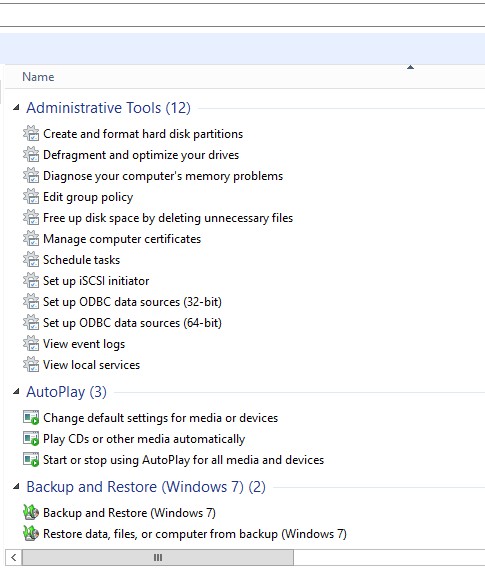
After creating the above folder (let’s say on your Desktop) you can open it and will display all possible controls that exist on your machine (see above).
#6 Navigating directly to your Desktop
Have you ever wondered how you can navigate directly to your desktop on a Windows 8 or later? Well, it’s as easy as hitting WIN+D on your keyboard and you get directly to it. By the way, “WIN” stands for the Windows button on your keyboard.
#7 Rename multiple Files simultaneously
So you have a whole host of files that you would like to rename and you’re dreading the process of doing it one file at a time. Well, you can select all of them and hit F2. You can then rename them in bulk. The operating system will also append numbers in the format (1), (2), and so on in order to avoid confusion.
#8 Shutting down the Computer
So you want to shut down your computer quickly. The process of going to the start menu and looking for the shutdown button will seem pretty slow once you realize that all you have to do is hit the Windows key followed by U twice. The computer shuts down immediately!
#9 Undoing an Undo
So you just wrote something on your Word document, didn’t like it, and undid it. Great! But what if you want to take back to what it was before because you suddenly changed your mind? Wouldn’t it be great to have a shortcut for undoing an undo? Worry not, there is already one: Simply hit CTRL+Y.
#10 Toggling the Case of Text
Who said you have to rewrite text when you want it in a certain case? You can easily toggle between lower case and upper case in Word processor by hitting Shift+F3. This is guaranteed to work on Microsoft Word. It may or may not work in other word processors.
#11 Permanently delete a File
So you don’t’ like a file and you want to permanently delete it. Usually, you’ll just delete it from the folder containing it and then head on to the recycle bin and delete it again. Easy, right? Well, what if I told you there was a faster way to do it? All you have to do is select it and hit Shift+Delete to permanently delete it from the computer.
#12 Lock your Computer directly
Do you want a convenient way to lock your computer without having to go to the start menu? There is a shortcut for that. All you have to do is hit WIN+L and your computer immediately locks and you have to enter your password to reenter it.
#13 Resync Audio and Video Files on VLC
If you use VLC Media Player on your computer, you will notice that sometimes the audio and video files are not in sync, with one lagging behind the other. The same can happen with subtitles sometimes as well. When that happens, just press ‘J’ to resync the audio forward and ‘K’ to resync it backward. For subtitles, you can press ‘H’ and ‘G’ to delay and speed up the subtitles, respectively.
#14 Spell Check
This one works for both PC and Mac. If you want to do a quick spell check on a word, simply hit F7.
#15 Get the lowest Airfares
Are you looking to get the lowest airfares or hotel prices? Simply clear your cache and cookies. Alternatively, visit the website in Incognito mode and you get to see the real prices!
#16 Preview of Currently Running Windows
Assume that you have 10 different windows open on your computer, such as a browser window, a word document, a text editor, file explorer window etc. If you want to navigate across each open window (application) then press Alt + Tab simultaneously. If you keep pressing the Alt key and toggle the Tab key, you will navigate to all open windows one by one.
#17 Toggle Between Open Browser Tabs
Right now, I have at least 15 open tabs on my browser. If I want to navigate (toggle) across my browser tabs one by one, the keyboard shortcut for this is Ctrl + Tab. Try it now!!
#18 Search and Find (Ctrl + F)
This is another popular keyboard shortcut. Using Ctrl+F you can search and find for any text on the currently open window. Let’s say you have an open word document and want to search inside the document for some text. Press Ctrl+F to search for it. The same works also on browser windows to search inside a webpage etc.
#19 Copy and Paste Shortcuts
Two of the most useful and popular shortcut commands on a keyboard are Ctrl+C (Copy) and Ctrl+V (Paste). For example, if you want to copy some text from a document, first select the text with the mouse and then press Ctrl+C. If you want to paste that text, move your mouse to a new area on the document and press Ctrl+V.
#20 Refresh the currently open webpage
Imagine you have visited a website with your browser and the page does not respond or load slowly. You can use the Ctrl+F5 key on your keyboard to force refresh the website (i.e the browser will try to load the page again).
Final Thoughts
With these shortcuts, you can expect your productivity to skyrocket. Navigating your computer will be a breeze and you will be able to get a lot more done in a lot less time.
Author Bio

Jennifer Sanders has been working as an editor and a copywriter at a journalistic company in London for 3 years. She is also a professional content writer in such topics as inspiration, productivity, education, and technologies.
Feel free to connect with her Twitter or Facebook.

bruh
i knew 8 of them
If you want to paste that text, move your mouse to a new area on the document and press Ctrl+V.