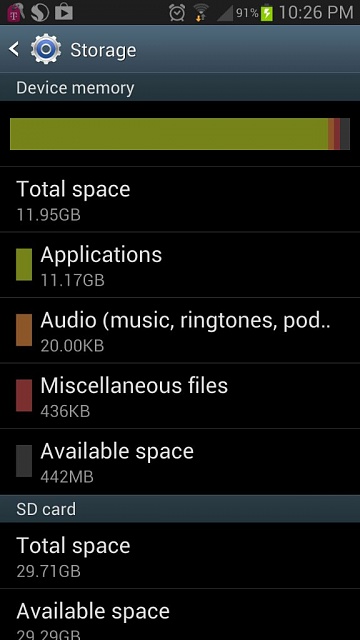
Android Storage
After a couple of uses, an Android-powered tablet or phone will eventually get cluttered with tons of pictures, apps, widgets, cached files, and more miscellaneous data that takes up lots and lots of storage over time. It’s fairly easy to increase the amount of storage space on an Android tablet or phone – Just follow these simple instructions:
Step 1: Move Apps to A Data Storage Device
Move your apps to a USB storage or an SD card. Android apps usually get installed by default on your device’s storage system. But you can still transfer a lot of these apps to a USB storage or an SD card. In order to begin, open up the Applications screen located in the Settings menu. Click on Manage Applications to get a glimpse of your currently installed apps. To find out which apps are occupying the most space on your phone or tablet, click on the menu button and pick Sort by Size. The largest apps will appear on the top of the list. Click on the app that you want to transfer to your USB or SD card. On the app details’ screen, click on Move to USB storage, or Move to SD card option to increase the space inside your system storage.
Android Apps
Step 2:Remove Apps that You Rarely Use
Uninstall apps that you don’t use frequently. An easy way to gain more space inside your device is to delete apps or games that you haven’t used in a while. Go to Settings > Apps, and remove all of your unused software. The space taken by each app can be found under the name, and this is the space that you will be gaining. Pre-loaded apps and system apps cannot be deleted.
Step 3: Upload Big Files such as Photos to Your Computer

Picasa
If you have some pictures in your device and you haven’t removed them yet, then they may be taking up a bit of room. Upload your pictures to a computer by launching the Gallery app and clicking on the Camera folder. Click on the Menu button and choose one or more pictures that you want to upload. Afterwards, click on the Share button and choose Picasa. Photos that are uploaded to a Picasa web album will show up in the Gallery app, but a copy will be kept inside Google’s servers and downloaded to your phone or tablet when you view them. This tip is also a great way to backup your pictures. If Google+ is installed on your device, it will automatically upload your pictures to a Picasa album, and you can delete the pictures from your phone.

Leave a Reply