If you have a computer that includes many partitions or drives, you can make a system image that will include all of them by following these instructions.
Step 1: Open Backup and Restore Window
Open up your Backup and Restore. You can do this by clicking ‘Start’, then ‘Control Panel’, then ‘System and Maintenance’, and finally, ‘Backup and Restore’. On the left side, you will click on ‘Create a System Image’, and follow the instructions given by the wizard. If the wizard asks you for a confirmation or administrative password, just type in the password or provide confirmation.
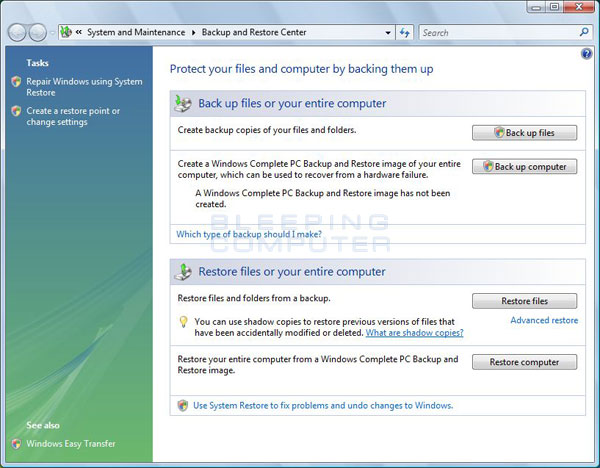
source:Bleeping Computer
Step 2: Start Backup Process
After choosing the location for your backup, you will be prompted to start back up. Although this kind of backup process includes your personal files, it is suggested that you regularly create a default backup of your files using Windows Backup.
It will help you restore your folders and files when you need them. Once you set up Windows Backup, Windows will choose which file to create a backup of. This will include a system image, or you can just pick the items that you want to back up or if you want to include a system image or not.
This system utility was introduced by Microsoft in Windows 7. Afterwards, they tried to hide this feature in Windows 8 and Windows 8.1. Until now, it still remains a hidden feature. It is hidden inside Windows 10’s Technical Preview, but system images are mentioned in the Update’s Recovery section and recovery tab, under the ‘Advanced startup’ option.

System Backup
Step 3: Creating the System Image with Windows 10
i. Open up your Control Panel and click on ‘File History’. Below the left pane, you will find a link to System Image Backup, which is located underneath ‘See Also’. Click on that link.
ii. The System Image Backup utility will appear on your screen. Choose a spot to save your system images and create a backup – On a DVD, a hard disk, or on a network location. Afterwards, click ‘Next’. Confirm your settings and click on ‘Start Backup’ to begin.
iii. You can open up the new Windows 10 Settings menu if you want to restore your PC and use your system image. Then go to ‘Update and Recovery’. Below ‘Recovery’, look for ‘Advanced Startup’, and click on ‘Restart’. As your PC is restarting, go to ‘Troubleshoot’, then ‘Advanced Options’, then ‘System Image Recovery’.
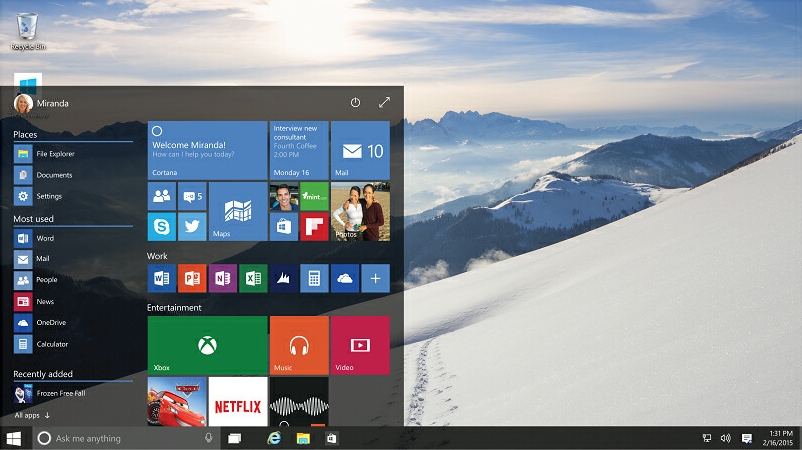
Windows10
If you want to save your system images in a network location, you can keep only the most recent system image for every computer.

Leave a Reply