
Linux Logo
There are a lot of ways to install Linux’s Ubuntu operating system to your Chromebook. This tutorial will be using Crouton (Chromium OS Universal Chroot Environment) as an example. If you’re using Crouton, you’re using only the Linux operating system. But you’re actually running two environments aside from the OS. These are Chrome OS and the regular Linux desktop.
Always make sure that you have a backup of all your files. Because your data is synced to Google’s servers, you don’t need to worry about your data going missing. The only data you need to make a backup of is your Download folder, since the content inside is not synced. Enable ‘Developer Mode’ on your Chromebook. Usually, Chromebooks are locked down for privacy purposes. By using Developer Mode, you can disable all of its security features, allowing you to play and modify it to your personal preferences.

Linux Chromebook
Once you have enabled Developer Mode, you can now access a Linux terminal found inside the Chrome OS, and feel free to do whatever you wish. If you want to enable developer mode in your Chromebook Pixel or Samsung Chromebook, hold down the ESC key and Refresh keys, and click on the Power button. This will launch your Chromebook into recovery mode. Previous versions of the Chromebook contain physical developer switches that you have to manually toggle.
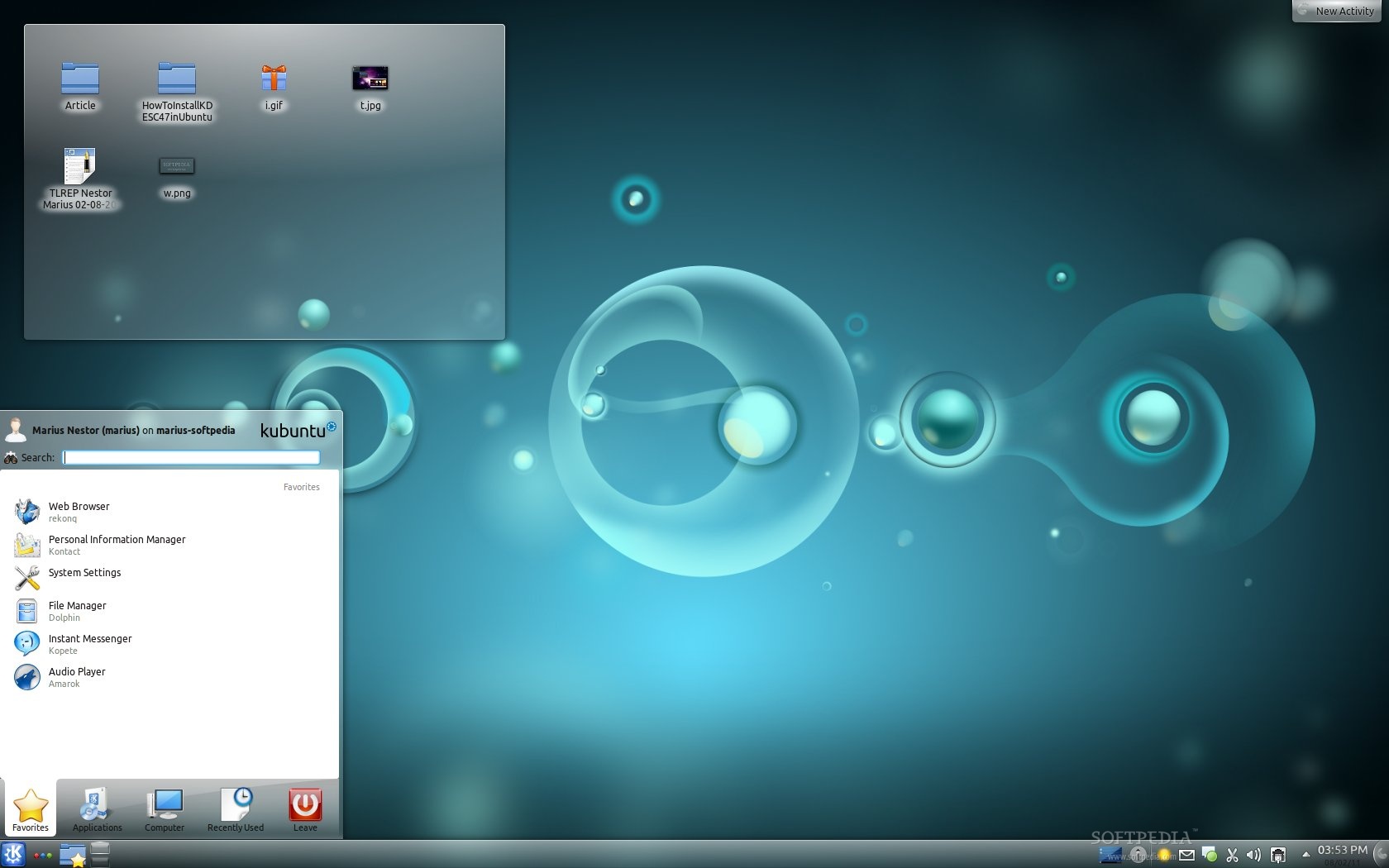
kde Plasma
When you arrive at the recovery screen, click on Ctrl + D. Agree to the prompt, and your Chromebook will go into developer mode. Every time you boot your Chromebook, you will get a warning screen – And you need to press Ctrl + D and wait for around 30 seconds to resume booting.
Next, it’s time to install Crouton. The fastest way to install Crouton is to run the command sudo sh~/Downloads/crouton –e –t xfce. This will install Crouton together with the Xfce desktop and an encrypted Chroot for security.
The next step is to install Ubuntu. There are plenty of desktop environments that you can use, including Xfce, Unity, and KDE Plasma. Pick KDE Plasma sudo sh ~/Downloads/crouton –t kde. You may also use Xfce or Unity if your KDE isn’t your preferred environment.
If you want to encrypt the Chroot, then include the –e parameter into the command above: sudo sh –e ~Downloads/crouton –t kde. If you’re planning to install it in a chromebook that has a touchscreen, you need to include the ‘touch’ parameter: sudo sh –e ~/Downloads/crouton –t touch,kde.
Because this script will download Ubuntu from the Internet, this whole process may take some time, depending on the speed of your broadband. Once it is finished installing, Crouton will ask you to put in your username and UNIX password for it – This will be used to perform administrative tasks in Kubuntu.
You can now open up Plasma by running this command in shell: sudo startkde. If you have installed xfce, then run: sudo startxfce4, and you will be greeted by the KDE greeter.

Thank you for the post. Please remove the space between touch and kde so that it reads “touch,kde”. This command would not work for me until I removed the space. Thank you.
Thanks,
That was a typo.
Harris