Bookmarklet
If you’re trying to find a good read later service, then you should at least know how to utilize bookmarklets, which you will be able to click once you encounter something that you want to save to your computer. It’s also recommended that you have a browser extension for Firefox, Safari, or Chrome.
Other methods of saving are through email, using an app that comes with a built-in integration, and sending it via Kindle.
Through OS X Mavericks, Apple has unveiled their Reading List inside their Safari web browser. This program allows you to look for the content that you want to read, whenever you get the opportunity to do so.
Aside from this, Reading List can also be synchronized between your Mac and iOS gadgets, so you can pick up from where you left off, and read from anywhere. This is how you get the most out of Apple’s new feature:
OS Mavericks
Saving pages using Safari Reading List: Safari’s Reading List is a place where you can bookmark content found on the web.
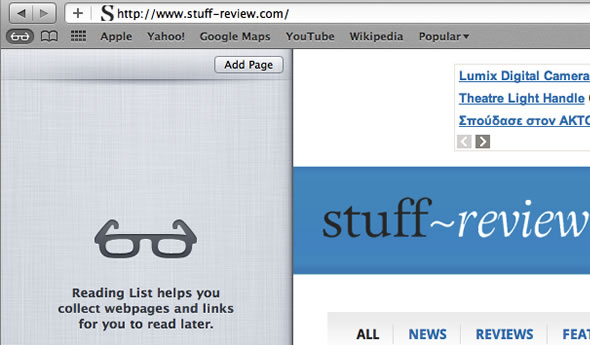
You can open Safari, and head over to a webpage that you want to save into your Reading List. Click on the plus button found on the left side of the web page URL and Safari’s address bar.
Another way of saving is by holding down the shift and command keys and typing D.
To open the Safari Reading List, launch Safari, and click on the View menu. Choose ‘Show Reading List’ Sidebar. You can also click on the Bookmark button or hold down the control and command keys, then type 2.
If you want to remove an item from your Safari Reading List, open Safari, click on the View menu, and click on the Show Reading List sidebar. Then click on the X button on the upper right hand corner of the specific list entry.
Safari Reading List
One of the best things about this feature is that your reading list will be synched to iCloud. This means that once you save an article to read later in your Apple device, it will be available on everything that is connected into your iCloud account.
Safari’s job is not just to store a link inside a web page. If it does this, then the items found in your Reading List will become more than just a specialized bookmark. Safari can download an entire archive of web pages, so you can view it later, even when there’s no Internet connection.

Leave a Reply