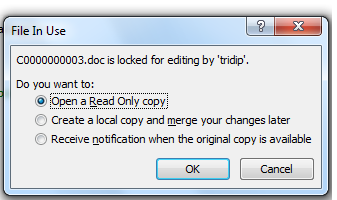
Read Only
Microsoft introduced the Protected View mode back in the 2010 version of MS Office. This can also be found in the 2013 version as well.
Protected View was designed to provide greater security, since files that are downloaded from the Web, or even the ones attached in emails, possibly contain viruses and can be harmful to your email or your computer system. If you use Protected View, your desktop will be protected from infection by these harmful items automatically.
Protected View appears as a read-only mode where a lot of Word’s editing functions are removed. These are the reasons why a file is usually opened in Protected View:
MS Word Protected
The file might be opened from an Internet location. Many files from the Internet do contain viruses, as well as other dangerous content found in them. It is recommended that you only edit the document, if you trust the content inside the file.
The file might also be opened from an unsafe location. One of the examples of an unsafe location is your Temporary Internet Files Folder.
But if your files or documents always come from safe sources, and if you’re running a trustworthy antivirus program, then you can switch off Protected View and save that additional step. Here’s how:
First, open up any Office program such as Microsoft Word. Click on the File menu present in the ribbon. Click on the Options tab found on the left sidebar.
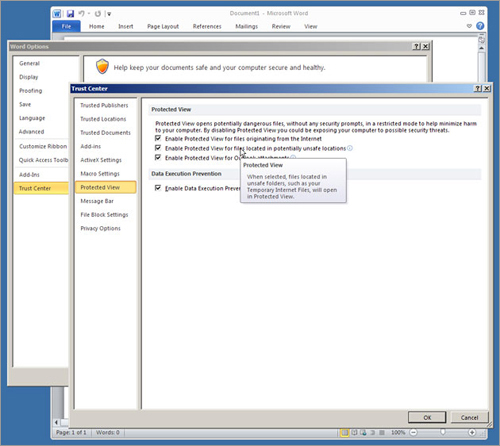
This will open up the Options window. Then click on the Trust Center tab, which is located at the end in the left side pane. Click on ‘Trust Center Settings’. A new window will open up that allows you to modify the Trust Center settings. Click on the Protected View tab, found on the right side pane. Next, you will get these options:
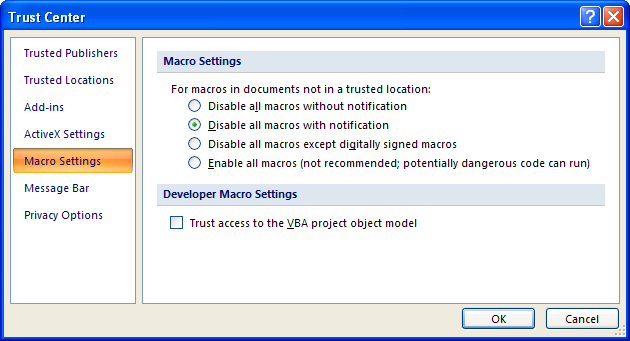
Trust Center
Enable Protected View for files originating from the Internet, Enable Protected View for files that are located in a potentially unsafe location, and Enable Protected View for Outlook attachments.
All of these options are enabled. Disabled the options that you want, or just disable all of the given options, so you can switch off Protected View completely.
Then click on the OK button to save changes. Lastly, close the Office program. Now, every time you open up a file downloaded from the Internet, or attached in an email, it will open normally instead of Protected View.
Keep in mind that you have to follow the exact process for all of the Office programs, like MS Word, MS Excel, and MS PowerPoint separately.

Leave a Reply