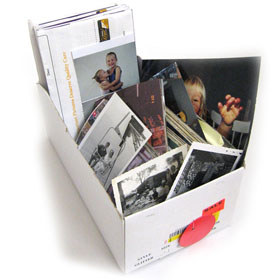
Shoebox
Shoeboxes containing old pictures may hold your family’s memories and personal history, but they’re hard to organize, share, preserve, and make backups of. Whether you want to lessen the amount of mess, let other people in your good memories over the Internet, here are the two ways to digitize your collection of print photos.
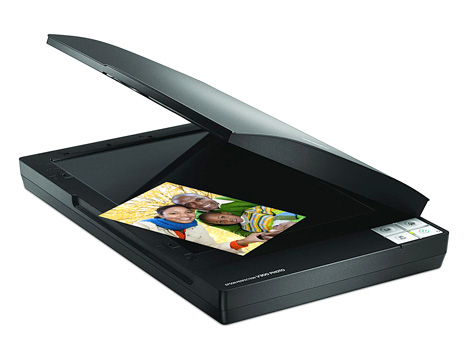
For the best quality possible, use a scanner. To convert your pictures, you will first need a scanner. Scanners have plenty of various shapes and sizes. But all of them work similarly – Like a copying machine.
Scan many photos in one go with the help of standard-sized scanner, allowing you to scan four 4×6 pictures all at once, and crop them later on. Choose a resolution of at least 300dpi, and if you want to order enlargements, at least 600dpi. Always take advantage of editing choices. A lot of scanning software lets you adjust the color or brightness, crop, and get rid of the red eye. When it comes to the scanned pictures, this is typically the same JPEG format utilized by a digicam. Afterwards, you are free to do whatever you want with your file: Send it in an email, print copies of it, and even turn it into your desktop background.
Scannerpic
Using a free app, and a smartphone that has a megapixel camera (like the Samsung Galaxy S6 or the iPhone 6), you can easily scan your old pictures, put them in an archive, and share the memories with your friends on the Web.
Step 1: Install Shoebox App
First, you need to install and download Shoebox from Ancestory.com. This is a free app for the Android and iPhone. Once you have made an account, you can start scanning your pictures. But before you get started, here are some tips for readying your assembly line:
Step 2: Clean Your Pictures
Remove dust from your pictures using a microfiber cloth, or use cleaning solutions that can help you with dealing dirty prints. Look for an area that has plenty of natural light and few surrounding details. Keep your phone’s camera spotless using a soft fabric or cotton swab.
Step 3: Open Shoebox and Start Scan through Your Phone
Shoebox Ancestory
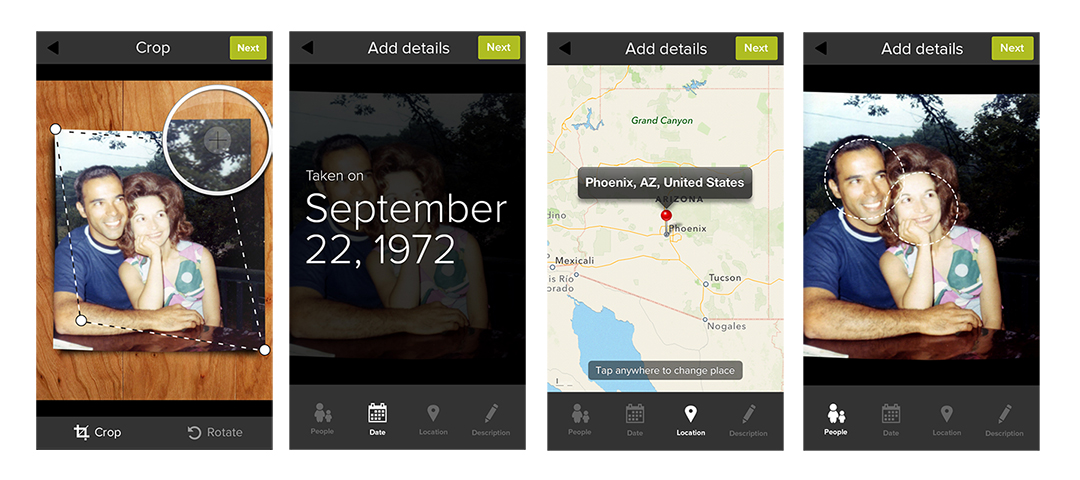
Now, you will be able to scan your pictures with your phone. Open up the Shoebox app and click on the green camera button. Then, with the photo lying down, place your phone in a way that it is parallel to the picture. Tap to focus, and then click on the shutter button.
Step 4: Crop Pictures and Provide Description
Next, crop the picture by dragging the crop lines. Include some additional info, such as the identity of the people in the picture, the year it was taken, and a short description. Lastly, upload the picture to your account. All of the scanned pictures will appear in your camera roll, and will be available online through your Ancestory.com media gallery.

I require old photo I take ,in my mobile
you can take a picture of the photo with your phone’s camera