
Fitbit
Fitbit has a new update called the Flex, a fitness activity monitor that you can wear on your wrist. Flex uses Bluetooth 4.0 to sync with compatible smartphones, such as the iPhone 4S, iPhone 5, iPad 3, iPad Mini, iPod Touch, Samsung Galaxy S3, and Samsung Galaxy S2.
Step 1: Install Fitbit Flex on Your Smartphone
If you happen to own one of the smartphones mentioned above, then it will only take several minutes for you to install the Fitbit Flex. Once the application has been opened, the tracker will automatically display on the large wristband.
The Fitbit app, available on both Android and iOS. This requires a Fitbit account, so if you don’t have one yet, you can make one on their official website. But if you’re using one of their other trackers, then the app should already be in your phone or tablet – Just make sure that you’re using the latest version of the app.
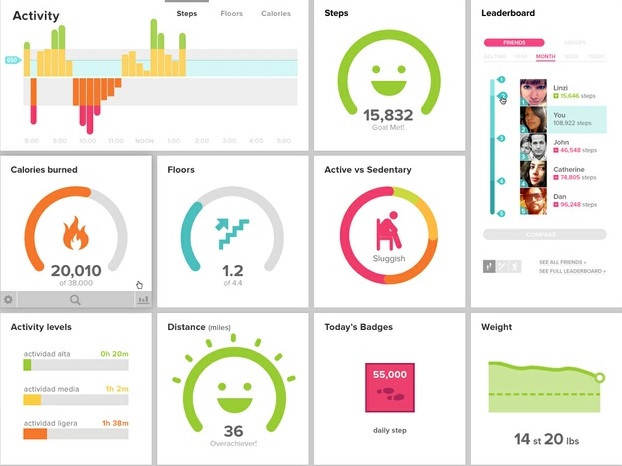
Fitbit Site
Step 2: Create a Fitbit Account
When creating a Fitbit account, you will receive a prompt to start the setup process for a tracker – But if not, you can just click on the ‘more’ tab found below the screen and click ‘devices’.
Afterwards, click on the ‘set up a tracker’ button to choose Flex from the list of options. You will receive a short tutorial about the tracker’s different parts, and will be asked to make sure that your phone or tablet is charged to at least 60% or more.
Once you confirm that it has a charge, search for the tracker’s blinking lights. Click on the lights twice to confirm that the app is including the right version of Flex into your Fitbit account.
Step 3: Charge Your Fitbit Flex
The Fitbit Flex comes with a USB charger. It is highly recommended that you keep both your phone and your Flex device fully charged.
If either one of these two devices does not have enough power the tracker won’t work. The USB charger provided by the Fitbit with their Flex device allows you to charge your device in the car or via computer. These various charging station options will allow you to keep your Flex powered even when you’re on the go.
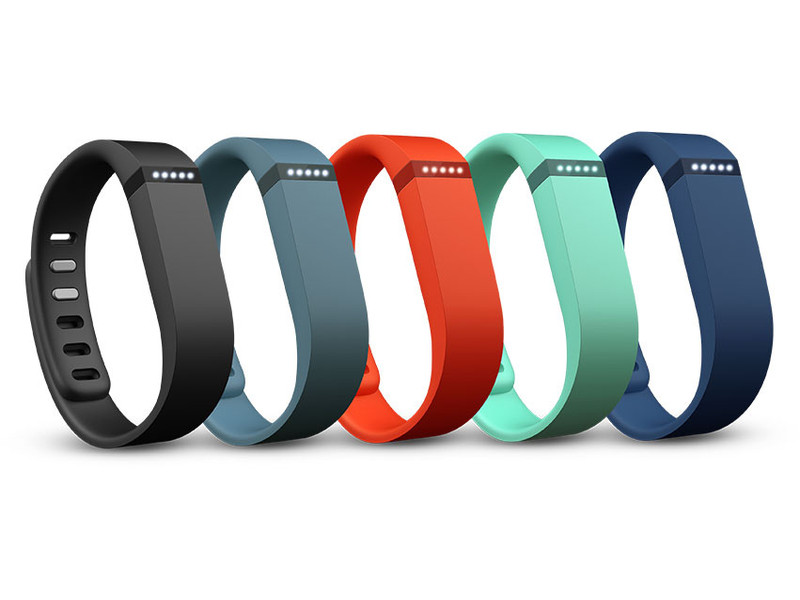
Fitbit Flex
Step 4: Fitting and Adjusting the Flex
Wear the Flex wristband and check if it’s just the right size for you. If it’s too loose or too tight, open up the box that slides out below the packaging and look for the small wristband. Adjusting the metal insert at the center of the two bands allows you to adjust the size so that it’s the right fit for you.

Leave a Reply