There was once upon a time when broadcasting your presentation was an impossible task. And if somehow it managed to get done, it required access to very expensive conferencing equipment. And on top of that, you would’ve had to hire the services of a specialist to set it up for you.

Luckily, with today’s advancements in technology, you can now live stream PowerPoint presentations–and in a hassle-free manner. Amazingly, your presence is actually not even required! .
We have compiled a list of ways you can live stream your PowerPoint presentation. So without further ado, let’s get started!
Live streaming PowerPoint presentations is a game-changer
Sharing PowerPoint presentations with remote audiences has now been made easy. And of course, one of the greatest advantages of this is that you can reach a far larger audience. A stable internet connection will be your biggest concern!
The pandemic has forced businesses and individuals to function in a virtual setting. Schools now conduct online classes and businesses take virtual meetings – all to adapt to the new normal.
But now, you can present your pitch deck from the comfort of your own home, miles away from your audience. Live stream your PowerPoint presentations!
Get your PowerPoint presentations ready
First thing’s first, create an amazing presentation. Are you creating for a group of investors? A set of customers? Are you presenting to convince, inform, or entertain? Whatever it is, it will need to be designed and customized with your audience in mind.
We recommend that you use templates to unify your slides. But if you don’t want your slides to look too generic and like everyone else’s, stay away from the built-in templates.
There are many free PowerPoint templates to choose from that will make your presentations stand out and perfectly suit your audience.
Ways on how to live stream PowerPoint presentations
1. Share a presentation link
MS PowerPoint is one powerful tool. Not only does it make for amazing presentations, but it also has several sharing options that are perfect for your every need. One is live streaming your presentations to your audiences.
This sharing option comes in handy at any time but during this time of the pandemic, it’s crucial. You can still present your pitch deck to your investors without having to physically face each other.
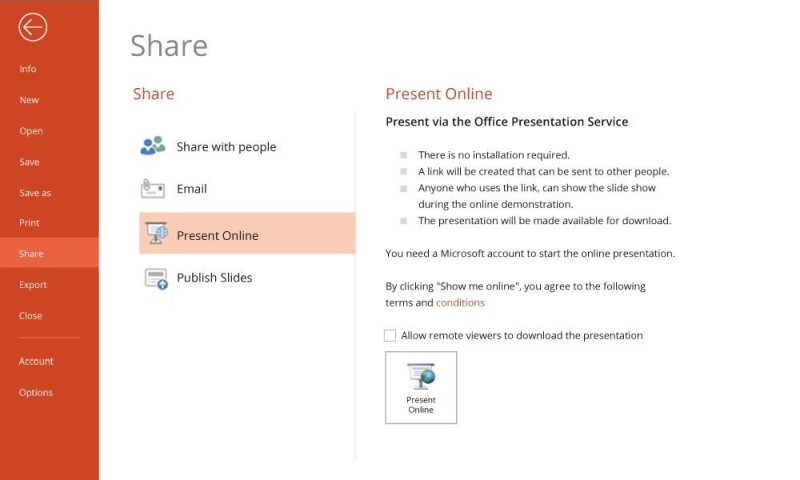
Step 1: Click on the File menu in your PowerPoint presentation
Step 2: Select Share option in the File menu
Step 3: Tap on Present Online
A description on the side then appears after clicking it. You can finish this step by clicking on the “Present Online” box on the bottom right.
Then, a dialogue box will appear after clicking the “Present Online” with the URL of the presentation. Copy the URL and share it with your audience through email.
Step 4: Start Presentation after your audience has received the link
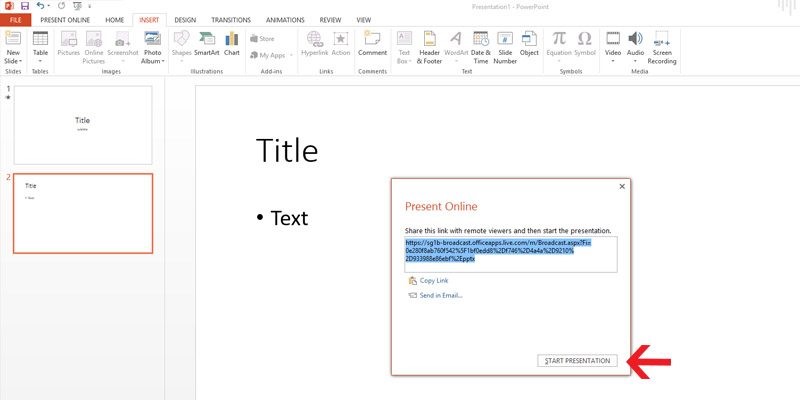
Now that your audience has the link, start your presentation.
Below is the presenter’s view of the presentation. Your audience will now be able to view your presentation in real-time.
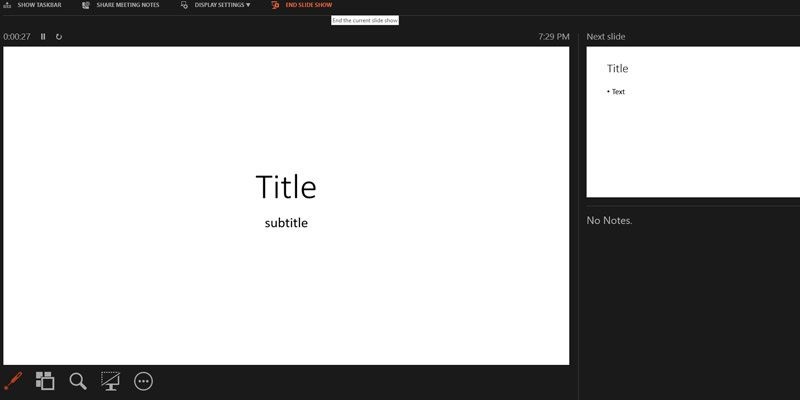
Once you are done with your presentation, you can click on the End Presentation button in the Present Online tab.
This method is completely free and will not require the installation of third-party software. However, there is a slight downside. Some of the deck’s features will be compromised and all transitions will be set to face from the audience’s POV.
Also, a file size limit may be forced on your deck depending on your connection. The key is to make your presentations concise and compact to minimize the lag in the loading speed.
2. Use Office Mix
Another method to live stream your presentations is through the use of Office Mix. You might be surprised by all the MS PowerPoint 2013 and a subscription to Office 365 can do.
Live streaming your PowerPoint deck has become easier. And you’ll only need the downloadable free add-in Office Mix.
The best thing about this method is that Office Mix can accommodate your slide contents. You can even add free audio, high-quality pictures, videos, quizzes, and even polls to your slides.
This is especially helpful for educators now that classes are often conducted in a virtual classroom. In addition, this is perfect for presenters who want to maintain a high level of engagement with their audiences.
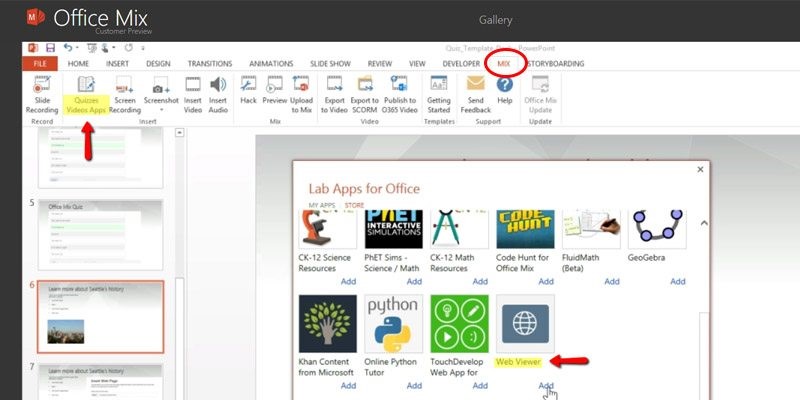
As you can see above, there are tons of features that are available in the Quizzes Video apps in the Mix tab. These will immediately appear once you have downloaded it.
But that’s not all…
Office Mix offers a live digital inking feature that lets presenters guide their audience through the slides utilizing videos, illustrations, audio, and more in real-time.
It also has its own site dedicated to helping users get around this useful feature. For first time users, there are tutorials that can save time as well as improve a user’s level of competency with Office Mix.
As with the first method, Office Mix requires one thing: a stable internet is needed to share your presentation with your audience in real-time.
However, the Office Mix add-in has another unique quality, unlike the first method. Your audience will be able to playback the presentation after you have ended it. In this way, they can review the deck at their own speed.
3. Upload to SlideShare
Over the years, SlideShare has proven to be a useful file sharing platform that is very easy to access. If you want to live stream your PowerPoint presentation, upload it to SlideShare.
Take note that you will need to have an account on SlideShare to be able to upload files. But not to worry, signing up is free and takes only a couple of clicks!
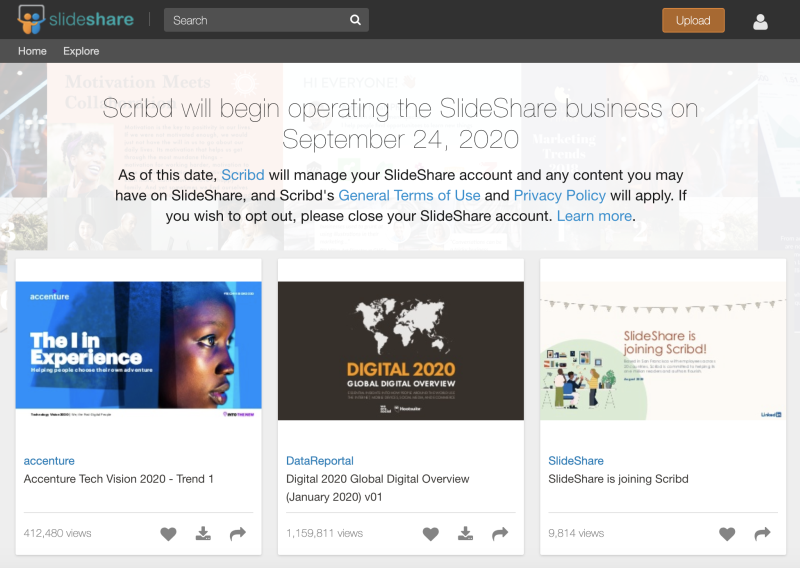
Step 1: Once you are on the home page, click the upload button.
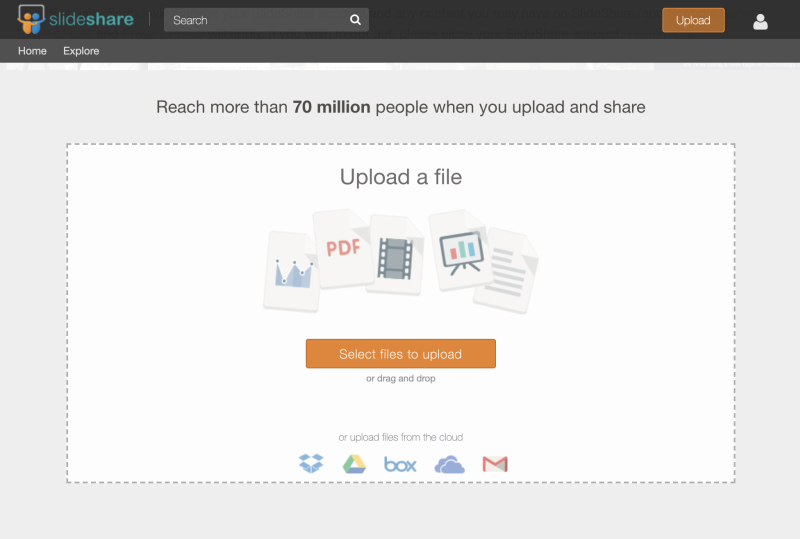
Step 2: Select the file to upload
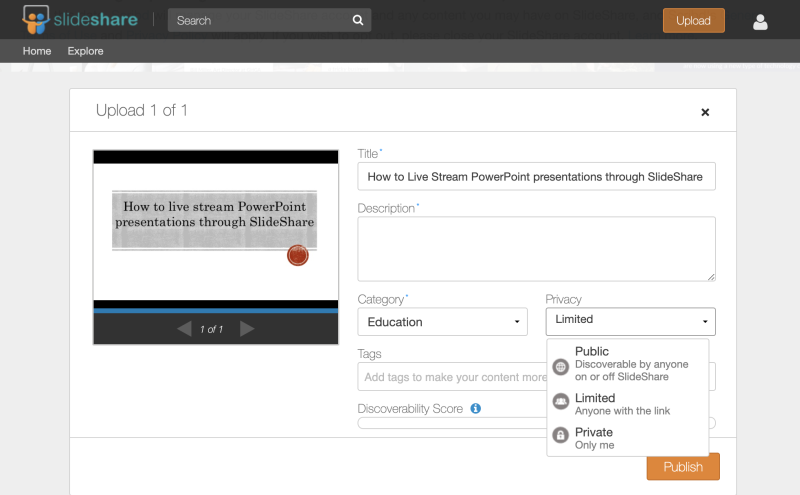
If your presentation upload is complete, the settings box will then display on your screen. Here, you can put a title to your presentation, description, category, and tags. Also, you can choose whether you want the upload to be public, limited, or only for you.
Once you are finished, you can hit publish!
One thing to remember: fonts, transitions, and other elements in your deck may be affected. You might have to go back and forth to make any changes, if necessary.
4. Share on Facebook live
Social media platforms have become more useful in this digital age. Facebook, for example, is more than just a tool to connect with friends and loved ones. Now, brands are using the platform to reach their audience and promote their products/services.
Facebook live now allows for screen sharing. That’s why it is also a tool to live stream your PowerPoint decks to your audience.
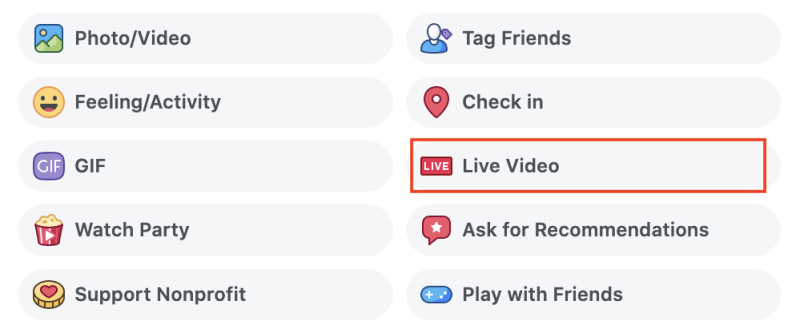
Step 1: On your Facebook profile, create a status and select Live Video
Step 2: Select the Share Screen option in the settings
As you go through Facebook Live’s settings, you will be asked to use your camera and microphone to set up the live video.
Then, choose the Share Screen option. Next, a box like the one below will appear.
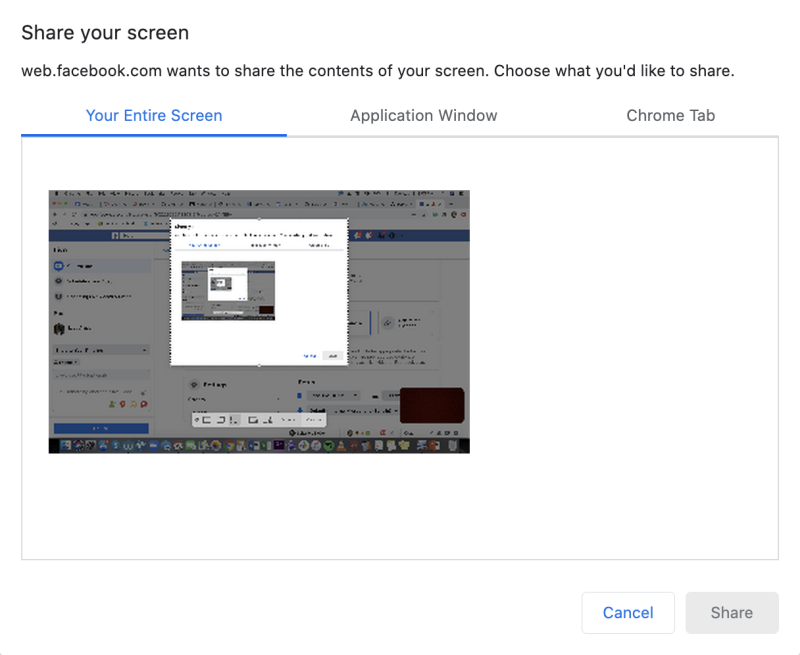
You can then choose to share your entire screen, an application window, or a chrome tab. After choosing, your Facebook friends can then view whatever it is you are sharing with them.
5. Broadcast through Google Hangouts
This is perhaps one of the most underrated apps for live streaming presentations. Did you know that the Video Call feature has a screen sharing option? You can either share your entire screen or a single window.
Step 1: Start by inviting your audience over a video call
Step 2: Click on the three dots on the left side of the screen to show the screen sharing option
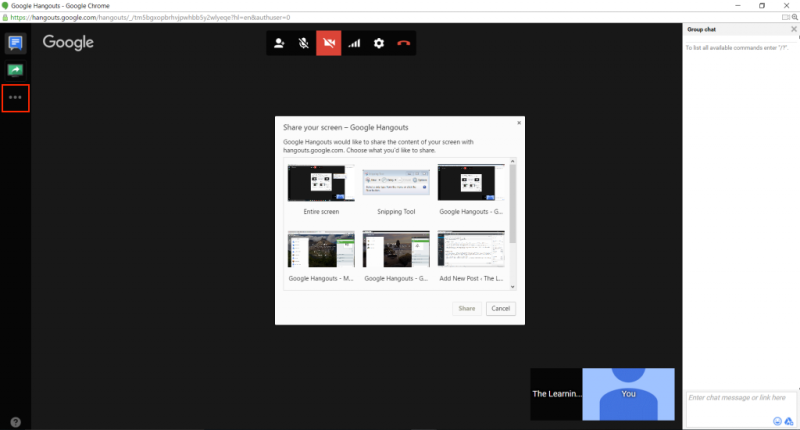
Step 3: Select your screen sharing option
You can either choose to share your entire screen or a single application window.
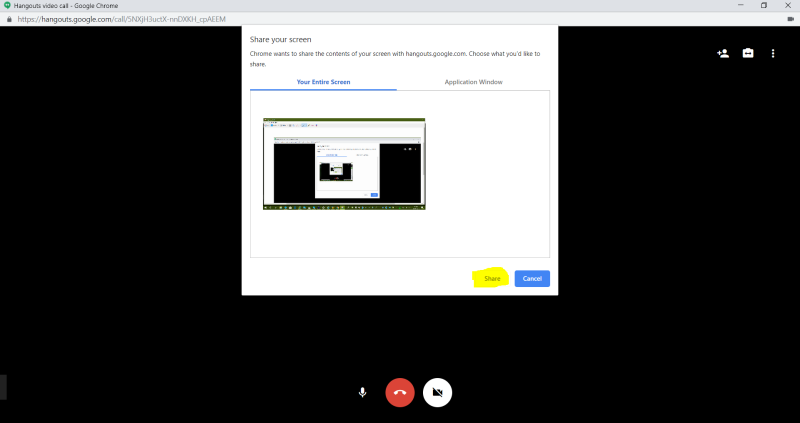
Since it’s a live video call, you can go through your slides at your own pace. You can explain each one to your audience thoroughly.
6. Upload through third-party sites
Lastly, live stream your PowerPoint presentation through third-party sites. There are a couple of websites that allow for the broadcasting of presentations.
Presentain is one of these web apps that live streams contents. You can even have the option to record a voice over for your presentation and conduct polls.
First, upload your PowerPoint presentation or import it through Google Slides. Then, you can live stream your slides to your audience via URL and QR Code.
These third-party sites promote interactive presentations. The audience can ask questions right afterward. These sites are great for broadcasting presentations, but most of them will require subscription fees to allow you to share unlimited files.
As for Presentain, it does offer a free edition, but this only allows three presentations, five audience connections, and three polls.
Conclusion
Right when we need it the most, the technology is here to help us reach out and stay connected. Don’t let physical distance be a barrier between you and your audience!

Leave a Reply