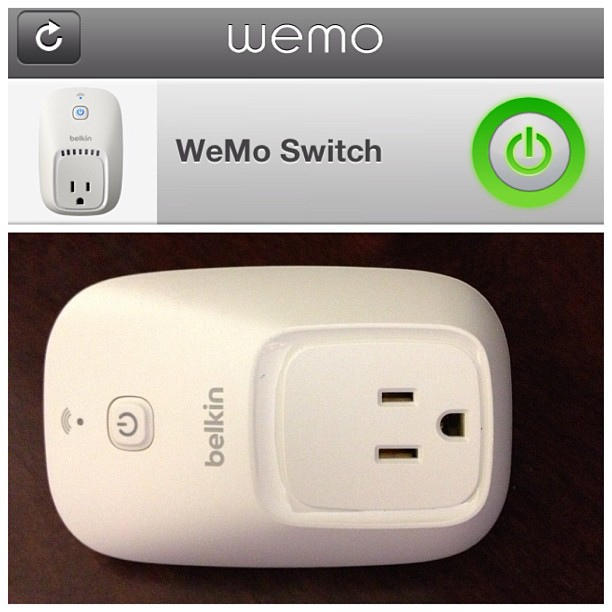
Belkin WeMo Switch
The Belkin WeMo Switch is kind of a huge upgrade from their previous analog timers – But this one isn’t difficult to set up and utilize. This application can switch your electronic gadgets on or off from wherever you’re standing. It also uses your home’s Wi-Fi connection to offer wireless handling of stereos, heaters, lamps, and TV sets.
Step 1: Download and Install Belkin WeMo App
As mentioned, the Belkin WeMo Switch is also easy to set up. You can download the app through your iOS or Android gadgets. Then open them up and select ‘Belkin WeMo Switch’.
Plug the switch in, check your phone’s settings, click on ‘WeMo Wi-Fi Network’, and go back to the app. Then enter in the details of your home Wi-Fi, and you can now plug something inside your Switch. You will also be able to form schedules for it, and if necessary, switch it on or off anywhere with the app – As long as your phone has its own Wi-Fi connection.
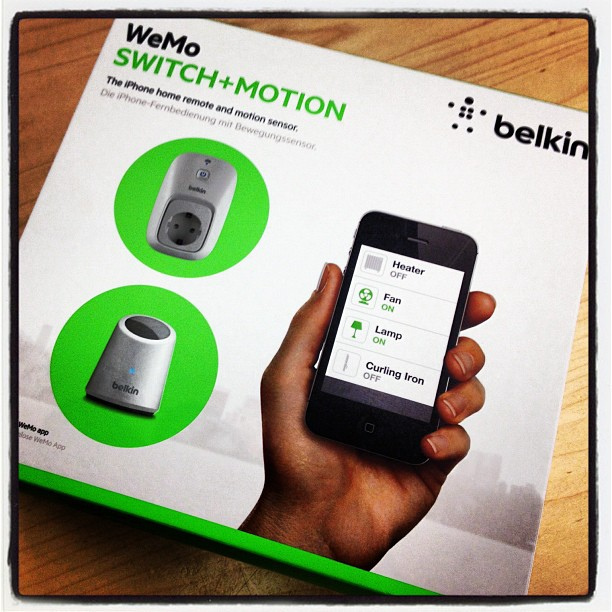
Belkin Switch & WeMo App
Step 2: Use Your Tablet or Smartphone to Switch ON/OFF Your Device
By using your tablet or smartphone, you can switch your device on or off – As long as your device is running iOS5 or Android 4.0, or its higher versions.
You will be able to assign schedules for your gadgets, and also be able to take control of them through the help of a mobile Internet connection. You can also include some extra switches to your home, so other devices can be controlled.
Step 3: Use Belkin WeMo Switches on Applicances
Belkin WeMo Switches don’t just work on lamps – You will able to plug in nearly every small appliance or electronic gadget of your choice.
This can vary from coffee makers, to fans, to space heaters. If you forgot to switch your iron off before heading out for work, then just click on your Belkin WeMo app and switch ‘off’ on the digital power button. If the button’s light is green, it means that your appliances are switched on. Simply click on the power button to switch it off from wherever there’s a stable Internet connection.
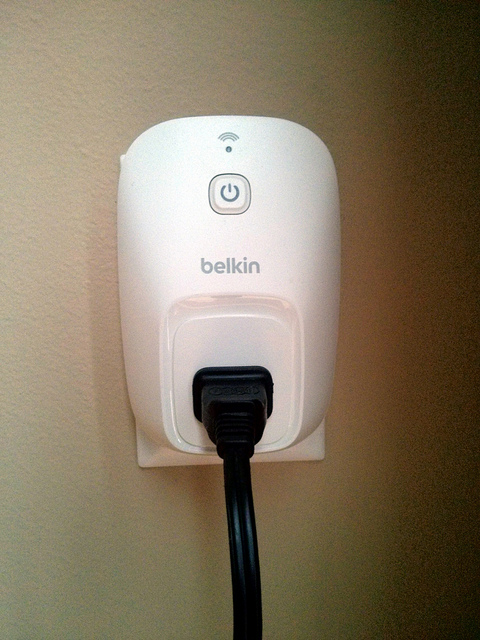
Belkin Switch allows Wireless Control
Step 4: Enjoy Wireless Control with Belkin Switch and WeMo App
The Belkin Switch works well with the WeMo App. It allows you to gain wireless control of your electronics or home appliances. If you either want to switch off your kitchen lights, office, or front yard, then this app will take care of that task for you.
The Switch also works well with a mobile Internet connection, so this means that you can control your home devices when you have a 3G or 4G connection.
The WeMo app is absolutely free, so you can easily make schedules for electronics and applications in your home. You can use your tablet or smartphone to switch a fan on or off at a specific time of day, whether during sunrise or sunset, just by using a good 3G, 4G, or Wi-Fi connection.
The entire range of WeMo products is actually made to work together through the free Belkin WeMo app. By using the app as well as their products, you will be able to control and observe as little or as much of your house, as you want to.

Leave a Reply