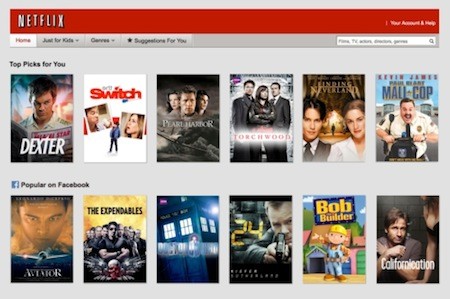
Netflix
In Windows lingo, God mode is usually referred to as a hidden feature that allows you to see all of your computer’s different control panel options, as well as other customized modifications in one place.
At the same time, Netflix’s very own God Mode will show you all of the video options a better and more digestible outline.
Netflix’s God Mode is a free bookmark that can be dragged to the bookmarks bar. It changes your Netflix queue’s arraignment, so you can see more titles at one glance.

Netflix God Mode
And instead of having to go to endless scrolling to look for your favorite movie, Netflix’s God Mode will show all of their recommended shows and movies for you in one giant block for every category. It transforms the Netflix website’s interface into something more computer-friendly.
You can enable God Mode in your Netflix account by doing the following:
Make sure you have a Favorites or bookmarks toolbar in your browser.
The actual command to do this will usually depend on the browser that you’re using.
But usually, this toolbar can be enabled by just right-clicking on an empty area on the top of your browser, and choose the option or checkmark to show your other bookmarks. If you’re using Internet Explorer, you need to right click on the bookmark and choose ‘Add to Favorites’.
Next, go to the page that includes the bookmark. You will find a clickable button with ‘Netflix | God Mode’. Move the button to your Favorites or bookmarks.
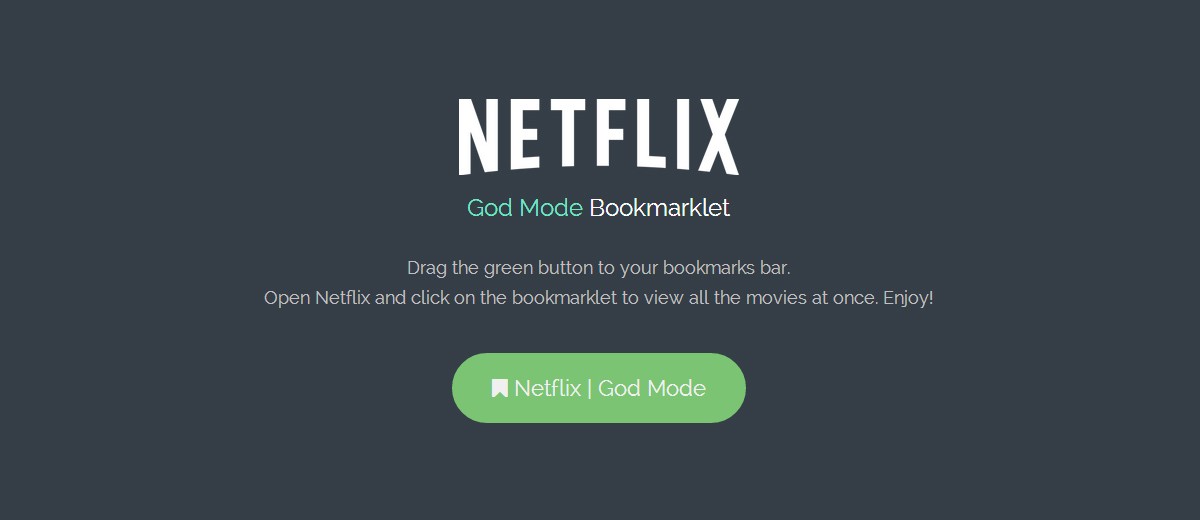
God Mode Bookmark
Go to the official Netflix site and log into your account. You will find the typical horizontal text titles in rows, which you can scroll while browsing. Click on the Netflix | God Mode button.
Netflix’s home page is refreshed immediately so you will now be able to see all of their movies/shows when you visit a specific genre or category. You can scroll down to view them all.
The secret behind their God Mode bookmarklet is a little bit of JavaScript magic to reconstruct the user’s Netflix interface.
This is the same as Firefox’s Greasemonkey scripts modifying the structure of certain sites such as Facebook. So now every time you hit on ‘refresh’ or go back to the main page, you’re going to have to click on the God Mode button again.
As of now, God Mode only works with Google Chrome, Safari, and Mozilla Firefox. It is still unknown if it will be updated to accommodate Internet Explorer or Opera users.

Leave a Reply