Step 1: Download and Install WALTR
WALTR
Download and install the new Mac-based application from Softorino called WALTR, which is developed for users to easily upload and convert videos to an iPhone or iPad format.
Softorino is also the same team behind the iBetterCharge, an app designed for the Mac OS X. iBetterCharge works by altering the iPad or iPhone owner whenever their tablet or phone needs charging.
When you use the WALTR app, you can move your music and video files to your iOS device, without having to search for an iOS app.
WALTR assures that it is completely possible to convert both videos and audio files to an iOS device, regardless of the format.
These video clips or music files can be played back inside Apple’s Video or Music apps. This is in contrast to the same apps that usually require you to install a certain iOS app in your gadget. This limits the access to the files found inside the app, as well as preventing access to features including AirPlay.
Step 2: Drag and Drop Your Files Using WALTR

WALTR App
WALTR is easy to use – When you close iTunes, all you have to do is to simply plug in your iPad or iPhone into your Mac computer, then use WALTR.
Your iOS device, along with the amount of storage space available, will be listed on the upper portion of the app. You can begin dragging files into the empty space inside the app, so the files can be moved to the iOS device.
Your files will start uploading when you drag them into the WALTR app. Many of these uploads will only last for a couple of seconds. Lately, WALTR has been dealing with some issues when it comes to converting certain file types, such as AVIs. But its developers are working around the clock to fix some of the app’s glitches.
Step 3: Access Your Newly Uploaded Files via Music or Movie App
When your file is done uploading and has been moved to the iPhone or iPad, you will now be able to access it in the Music or Movies app on your IOS device. The entire process is quick and easy, rather than having to convert your audio and video files through a separate app, then uploading them via iTunes.
WALTR is the Mac OS X application that has changed the way people convert and upload their Media files to iPhones, iPads, and iPods. You don’t have to stress out over the right format suited for your videos or music. You can place in .mp4, .mp3, .m4r, .avi, .mkv, and .flac files in your iPhone without having to use iTunes.
Step 4: Converting MKV
MKV File
So what exactly is MKV? MKV stands for .MKVaka Matroska. This is a container that includes subtitled HD movies, etc. It is a highly popular extension for HD content usually found online.
When placing MKV inside your iPhone 6 or iPhone 6 Plus, WALTR will ask you to connect your gadget into the app – For example, the new iPhone 6.
Once the device has been connected, you will be able to find a new window that will be the container for your new MKV files. Once you drop your .mkv files that you want to store inside your iPhone 6, it will start the transferring process. MKV will also alert you if it has finished successfully transferring your files.
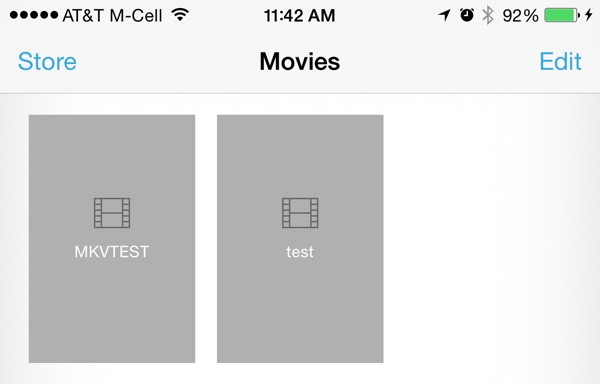
When MKV is done transferring your files, they will immediately show up in your iOS Videos app.

Leave a Reply