Chrome
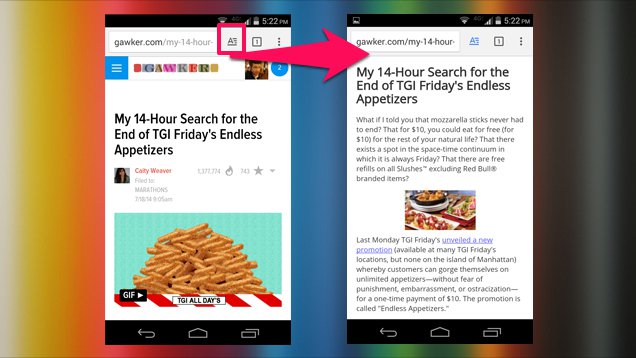
Chrome is finally including a ‘Reader mode’ in the latest version of their browser, a feature that has always been present in other browsers.
This feature strips down online articles into its basic, yet most important features, letting you read the whole thing easily. The program, which is still a work in progress, will be known as ‘Distill Mode’. Once Distill arrives, it’s definitely a must-try feature for fans of the Google Chrome browser.
Below is a list of the step-by-step process on how to use Distill on your Chrome browser:

Google Distill
1.) Find the shortcut for Google Chrome on your computer – It can be found on either your desktop screen, your taskbar, or in the Start menu.
If Chrome isn’t pinned yet to your taskbar, open it up, right-click on the icon, and choose ‘Pin this program to taskbar’. Then right-click and open up the Properties settings.
2.) There is a file path for the Chrome app located next to ‘Target’. Put your cursor after the last quotation mark inside the text entry box. Create a space, then type “enable-dom-distiller”. Make sure you type in the exact phrase, including the two dashes. If you want, you may copy and then paste the text above in the text field.
Chrome Reader Mode
3.) Click on ‘Apply’ then close down your Chrome browser. If you use Google Now or Hangouts for your computer, then you have to close the system tray icon too.
This is how to test Distill mode: Open Google Chrome from your new edited shortcut. Click on the three lines icon found on the top right-hand corner, and click on ‘Distill page’.
Distill is still pretty much a new feature, so it still may have some bugs and glitches when it comes to reformatting the page. But this option is excellent for websites that use video ads or flashing.
If you’re a Chrome user that thinks unlocking Distill takes a lot of effort, there are some alternatives. Fans of Evernote can install ‘Clearly’, an extension from the Chrome Web Store that has the same features as Distill. You can even save down your stripped articles to Evernote.
The newest version of Internet Explorer also has its own reading mode feature. But its desktop version doesn’t include similar features, and IE needs to become the default browser before you will be able to access the new user interface in Windows 8 and 8.1. Distill is also available on Chrome’s channels, so everyone will get to try it out.

Leave a Reply