Mymaps
Google has recently made an announcement that Google Maps for Android will now support the usage and viewing of My Maps inside Google Maps. My Maps is a Google product that lets users to view, share, and create custom maps that you or other people have made.
In previous versions, you can create these maps on your computer, then look at them in the app without any hassle at all. And the latest method usually involved having to download and use a separate app called My Maps, to manage and create your maps. But Google is now bringing a small upgrade to their main app that will let users gain access to their own personalized maps once more. This is how to find these maps:
Google Maps Mymap
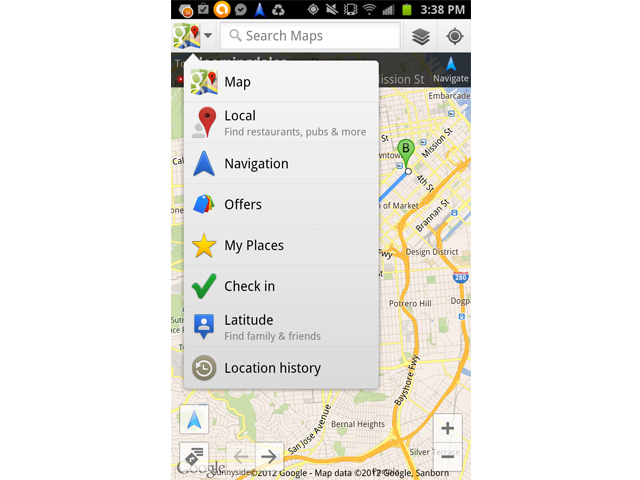
Slide out the left-hand Menu, and then click on Your Places. Scroll down past the Saved Places.
These are the ones that you have starred, but not included in a map. You will get to see your custom maps’ names.
Pick the map that you want to work with, and it will show up on the main view. You can click on the individual points to look at some info on every point, such as businesses.
The map will continue showing these points until you turn it off with the toggle found at the bottom of the screen.
If you want to install the My Maps app, you will need to make an account on Google or Google Apps, and own a device that runs Android 4.0 (Ice Cream Sandwich) or up. In your Android device, launch the Play Store and search for ‘My Maps’. Click on ‘Install’, and follow the prompts to complete the installation process. Once you’re finished, tap the My Maps icon, which will open up the app.
Mymaps Google
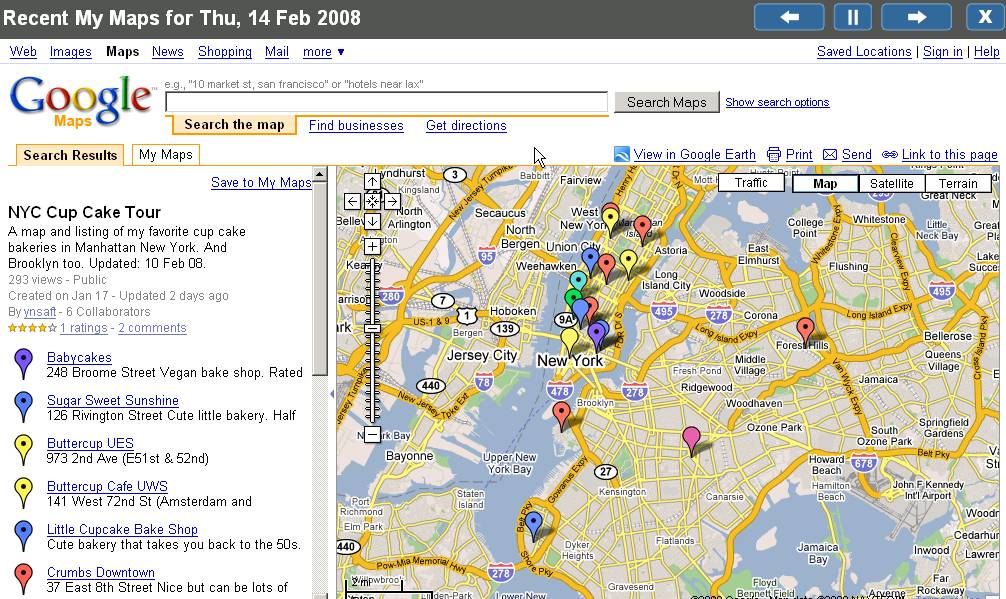
You can make your own personalized custom maps and share them on the Internet using Google My Maps. Create a map that enumerates the best dog-friendly hiking trails, or bookmark the latest locations of your upcoming business.
To make a new map, log into your Google Maps account by using the Sign In button, found on the top right corner of the map. Make sure that your search box is empty when you click inside it. Click on My Maps, then the Create button. For customizing maps, click on the pin button, then any spot on the map. Search for the place, click on the green pin, then Add to Map.
You can look at your my Maps in Google Maps on Android. From My Maps, you will be able to view your own maps, the ones people have shared with you, and public maps as well.

Leave a Reply