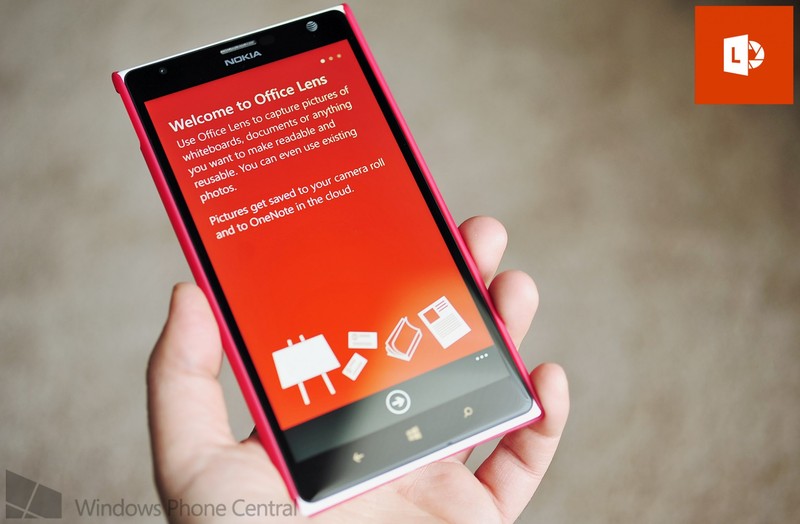
Office Lens Windows
A week ago, Microsoft revealed the latest version of Office Lens, a free app that scans your mobile, which was previously only limited to Windows Phones. Now, it’s available for iOS and a preview has also been made for Android users who want to beta-test it.
Office Lens can recognize printed text, so this means that you will be able to search using keywords in OneNote or OneDrive. It can also automatically change paper document directly to Office documents, such as presentations from PowerPoint and Word files. It also accepts images. Your phone will now also be able to add data and scan business cards.
The concept behind Office Lens would be to transform your tablet or smartphone into an efficient and quick scanner that can deposit business cards, documents, sticky notes, receipts, whiteboards, and other kinds of real-world objects inside your OneNote account (or other types of destinations). This is how the iOS version works:
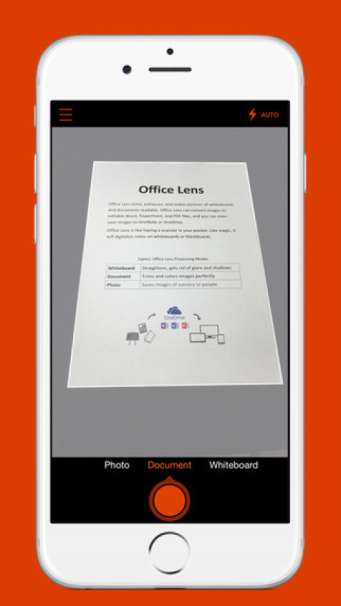
Office Lens Image Types
The first step is to install Office Lens into your phone or tablet. Run the app, then allow it to access your camera. The default view in the app is a camera viewfinder. Pick one of the available image types: Document, Photo, and Whiteboard. Point the camera at whichever you want to take a picture of.
If you chose Whiteboard or Document, you will notice that the app will try to automatically frame the image as you move it around. After the frame has covered the area that you want, click on the shutter button. Once the image is done being processed, Office Lens will show you a preview. If you want to crop the image, click on the Crop icon located on the upper-right corner. If you’re finished cropping, and are ready to save the picture, click on ‘Done’.
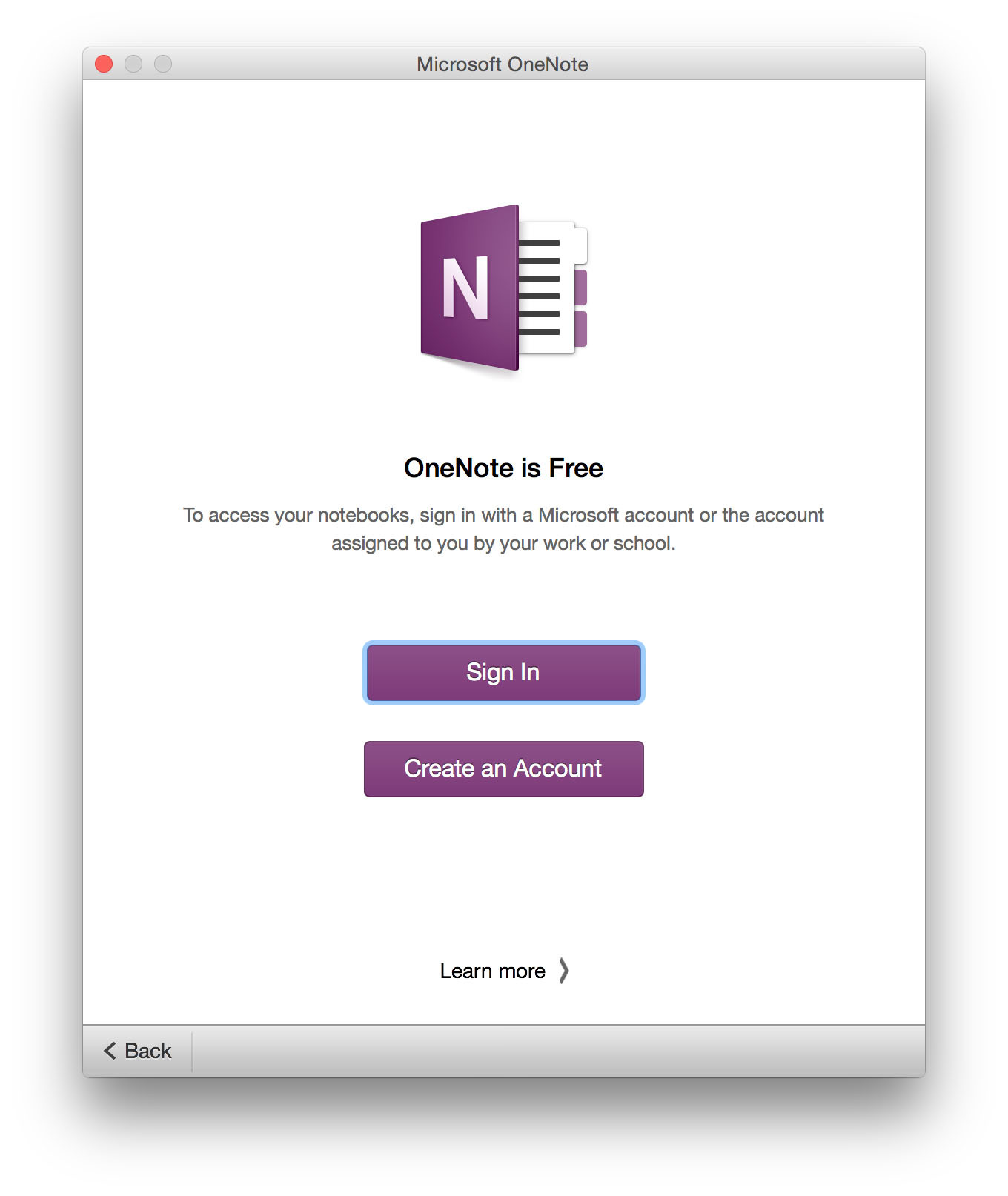
Onenote
The last step is to select the destination for your new picture. If you’re placing it in OneNote, you still need to sign into your account (this is a one-time step). Then you can now provide the image with a title, and select the notebook in which to place the image. Office Lens can also be exported to your OneDrive account, PowerPoint, or Word (it doesn’t matter if you have these apps on your device). Other export options include email, PDF, and your photo library.
To go back to the built-in iOS camera, go to Settings > OneNote > Camera Setting, and switch off Use Office Lens.

Leave a Reply