A lot of people usually ignore the pre-loaded apps found on their phones or computers. These apps take up plenty of storage space and some of them start automatically when you switch on your phone or computer, which can slow down the machine. What’s worse is that some of these apps have annoying banners that are also hard to turn off and can cause your device to lag.
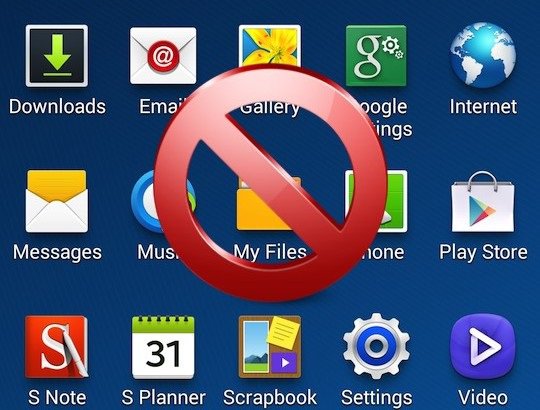
Bloatware
So it’s always an excellent idea to just get rid of all of these apps, which are nicknamed ‘bloatware’, from your computer or phone. Here’s how you do it:
Step 1: Manually Identify and Remove Bloatware
If you already know which apps you want to remove, then just go to Control Panel > Programs and Features, then choose the programs you don’t need and tap ‘Uninstall’. But if you’re still unsure as to which application is helpful or not, you must download an app that informs you which programs on your phone or computer are useful.
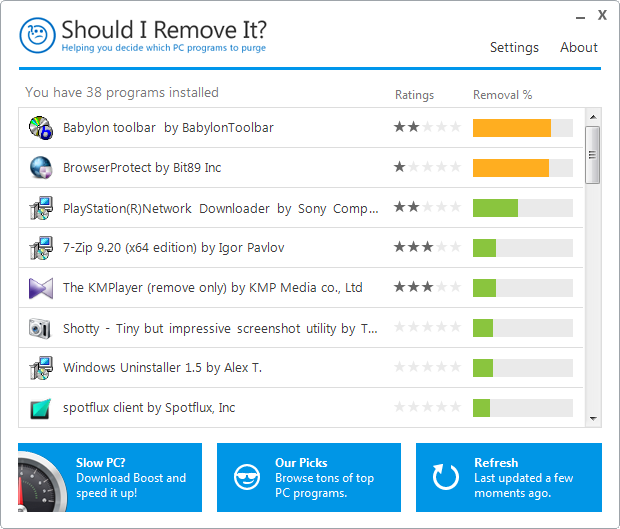
Should I Remove It
Step 2: You may also Find Application that Can Help You Identify Bloatware
Plenty of these types of applications are available, but the most popular one is an app called ‘Should I Remove It’. When you have downloaded this app, it shows you a full list of apps that you have in your computer or phone. It will show a rating for every app, as well as the percentage of people who have deleted the app.
Step 3: Remove Bloatware
Apps that have a green bar next to them are guaranteed safe for your computer, but the ones in red should be removed immediately. To be able to remove these apps, just click on the app’s name, then ‘Uninstall’. This is good for desktop apps, but the ones who have Windows 8 can also follow these steps to get rid of bloatware.
Step 4: For Windows 8 User

Control Panel Android
Launch Windows 8, and from the Start page, right-click on the correct tile for the app that you want to remove. Next, click on the Uninstall button. Scroll through the whole list of your installed apps, and tap on the program that you want to delete. Choose Uninstall. Follow the prompts to allow the apps to close down. Afterwards, restart your phone only if the prompt tells you to do so. Go back to the first step until you only have a few apps left in your phone.
It’s much complex to remove apps in an Android phone rather than a Windows phone, since removing programs can destabilize the entire system – When it comes to Android, certain programs usually depend on each other to work.

Leave a Reply